- ホーム
- Microsoft
- SC-300J - Microsoft Identity and Access Administrator (SC-300日本語版)
- Microsoft.SC-300J.v2026-10-14.q217
- 質問198
有効的なSC-300J問題集はJPNTest.com提供され、SC-300J試験に合格することに役に立ちます!JPNTest.comは今最新SC-300J試験問題集を提供します。JPNTest.com SC-300J試験問題集はもう更新されました。ここでSC-300J問題集のテストエンジンを手に入れます。
SC-300J問題集最新版のアクセス
「385問、30% ディスカウント、特別な割引コード:JPNshiken」
ドラッグアンドドロップ問題
お客様はMicrosoft Entraテナントをお持ちです。
保護されたアクションを実装する必要があります。
どの3つの行動を順番に実行すべきでしょうか?回答するには、行動リストから適切な行動を回答欄に移動させ、正しい順序に並べ替えてください。
注:正解の選択肢は複数あります。どの正解の選択肢を選んでも点数が加算されます。

お客様はMicrosoft Entraテナントをお持ちです。
保護されたアクションを実装する必要があります。
どの3つの行動を順番に実行すべきでしょうか?回答するには、行動リストから適切な行動を回答欄に移動させ、正しい順序に並べ替えてください。
注:正解の選択肢は複数あります。どの正解の選択肢を選んでも点数が加算されます。
正解:
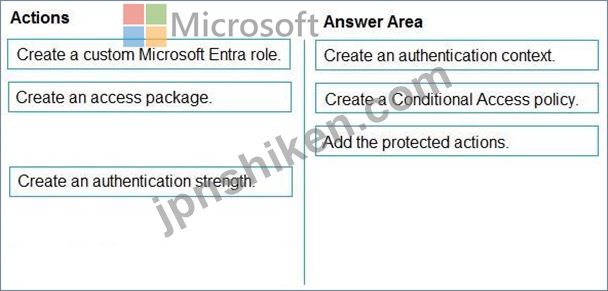
Explanation:
To implement Microsoft Entra protected actions, you need to configure Conditional Access policies and authentication contexts, then link those to specific permissions within Microsoft Entra ID. This allows you to enforce additional security requirements, like multi-factor authentication or compliance checks, before certain actions can be performed.
Step 1: Create an authentication context
Create a new authentication context: In the Microsoft Entra admin center, navigate to Entra ID > Protection > Conditional Access > Authentication contexts and create a new authentication context with a unique name and description.
Define authentication requirements: Specify the required authentication methods (e.g., multi- factor authentication, compliant device) for this context.
Publish the context: Make sure the context is enabled for use in Conditional Access policies.
Step 2: Create a Conditional Access policy
Create a new policy: In the Microsoft Entra admin center, navigate to Entra ID > Protection > Conditional Access > Policies and create a new policy.
Define policy scope: Specify which users, groups, or applications the policy applies to.
Choose the authentication context: Select the authentication context you configured in step 1.
Enable the policy: Set the policy to "On" or "Report-only" for testing.
Step 3: Add the protected actions:
Navigate to Protected Actions:
In the Microsoft Entra admin center, navigate to Entra ID > Roles & admins > Protected actions.
Add a new protected action:
Click "Add protected actions" and select the authentication context you configured in step 1.
Select permissions:
Choose the specific permissions you want to protect with the Conditional Access policy.
Save the protected action:
Click "Save" to link the authentication context and permissions.
Reference:
https://learn.microsoft.com/en-us/entra/identity/role-based-access-control/protected-actions-overview

- 質問一覧「217問」
- 質問1 Azure Active Directory (Azure AD) テナントをお持ちです。 セ...
- 質問2 ホットスポットに関する質問 Azure ADテナントをお持ちです。 以...
- 質問3 ホットスポットに関する質問 お客様は、次の表に示すユーザーを
- 質問4 ホットスポットに関する質問 お客様は、以下の仮想マシンを含む ...
- 質問5 ホットスポットに関する質問 お客様は、以下の表に示すリソース
- 質問6 事例研究2 - Litware, Inc. 概要 Litware, Inc.は、Fabrikam, In...
- 質問7 シミュレーション 必要に応じて、以下のログイン情報を使用して
- 質問8 事例研究2 - Litware, Inc. 概要 Litware, Inc.は、Fabrikam, In...
- 質問9 お客様は、Site1 という名前の Microsoft SharePoint Online サ...
- 質問10 あなたはMicrosoft 365のサブスクリプションをお持ちです。 グロ...
- 質問11 クラウドベースのエンタープライズアプリを含むAzureActive Dire...
- 質問12 ホットスポットに関する質問 お客様は、以下の表に示すリソース
- 質問13 お客様は、以下の内容を含む Microsoft 365 サブスクリプション...
- 質問14 contoso.com という名前の Azure Active Directory (Azure AD) ...
- 質問15 あなたはPass4test Inc.のクラウド管理者であり、すべてのユーザ...
- 質問16 貴社は、contosri.com という名前の Azure Active Directory (Az...
- 質問17 ホットスポットに関する質問 お客様は、AU1とAU2という名前の2つ...
- 質問18 あなたはMicrosoft 365テナントをお持ちです。 全てのユーザーは...
- 質問19 お客様は、1,000人のユーザーを含むMicrosoft Entraテナントを所...
- 質問20 お客様はMicrosoft Entraテナントをお持ちです。 リスク検出レポ...
- 質問21 Microsoft 365 E5 サブスクリプションがあります。 ユーザーは、...
- 質問22 Azure AD テナントと App1 という名前の .NET Web アプリがあり...
- 質問23 あなたはMicrosoft 365テナントをお持ちです。 全ての利用者は携...
- 質問24 RG1 という名前のリソース グループと、User1、User2、User3、お...
- 質問25 新しい Azure AD テナントをデプロイする予定です。 テナントに...
- 質問26 contoso.com という名前の Microsoft Entra ID P2 テナントがあ...
- 質問27 ホットスポットに関する質問 Microsoft Entraテナントには、User...
- 質問28 注:この問題は、同じシナリオを提示する一連の問題の一部です。
- 質問29 Azure AD Privileged Identity Management (PIM) を使用する Azu...
- 質問30 お客様のMicrosoft Entraテナントには、以下の表に示すIDが含ま...
- 質問31 2,500人のユーザーにMicrosoft Office 365 Enterprise E3ライセ...
- 質問32 ホットスポットに関する質問 お客様は、Microsoft Entraテナント...
- 質問33 お客様は、以下の表に示すオブジェクトを含む Azure Active Dire...
- 質問34 事例研究1 - Contoso, Ltd 概要 Contoso, Ltd.は、モントリオー...
- 質問35 ホットスポットに関する質問 お客様のオンプレミスネットワーク
- 質問36 注:この質問は、同じシナリオを提示する一連の質問の一部です。
- 質問37 あなたはcontoso.comというSMTPアドレス空間を使用するMicrosoft...
- 質問38 ホットスポットに関する質問 お客様は、以下の表に示すキーコン
- 質問39 多要素認証(MFA)が適用され、セルフサービスパスワードリセット(...
- 質問40 シミュレーション 「全従業員」グループのメンバーが、Microsoft...
- 質問41 ホットスポットに関する質問 あなたはMicrosoft 365 E5のサブス...
- 質問42 Sub1という名前のAzureサブスクリプションがあり、その中にVM1と...
- 質問43 あなたはMicrosoft 365 E5のサブスクリプションをお持ちです。 R...
- 質問44 あなたはMicrosoft 365のサブスクリプションをお持ちです。 ユー...
- 質問45 ホットスポットに関する質問 Azure サブスクリプションには、RG1...
- 質問46 Azure AD Identity Protectionを使用するAzure Active Directory...
- 質問47 ホットスポットに関する質問 Sub1 という名前の Azure サブスク...
- 質問48 ホットスポットに関する質問 お客様はcontoso.comという名前のMi...
- 質問49 ホットスポットに関する質問 Sub1とSub2という名前の2つのAzure...
- 質問50 お客様は、storage1 という名前のストレージアカウントを含む Az...
- 質問51 注:この問題は、同じシナリオを提示する一連の問題の一部です。
- 質問52 Microsoft Entraテナントには、Package1という名前のアクセスパ...
- 質問53 User1 という名前のユーザーが Microsoft Defender for Cloud Ap...
- 質問54 注:この問題は、同じシナリオを提示する一連の問題の一部です。
- 質問55 事例研究1 - Contoso, Ltd 概要 Contoso, Ltd.は、モントリオー...
- 質問56 ユーザー「User1」を含むAzure ADテナントがあります。 ユーザー...
- 質問57 あなたはMicrosoft 365のサブスクリプションをお持ちです。 ユー...
- 質問58 ホットスポットに関する質問 お客様は、Set1とSet2という名前の2...
- 質問59 ホットスポットに関する質問 Sub1という名前のAzureサブスクリプ...
- 質問60 ホットスポットに関する質問 Sub1 という名前の Azure サブスク...
- 質問61 事例研究2 - Litware, Inc. 概要 Litware, Inc.は、Fabrikam, In...
- 質問62 お客様は、以下の表に示すユーザーを含む Azure Active Director...
- 質問63 VM1 という名前の仮想マシンと Vault1 という名前の Azure Key V...
- 質問64 シミュレーション アクセスパッケージの割り当てを通じてテナン
- 質問65 ユーザー「User1」と、リソースグループ「RG1」および「RG2」を...
- 質問66 事例研究2 - Litware, Inc. 概要 Litware, Inc.は、Fabrikam, In...
- 質問67 ドラッグアンドドロップ問題 あなたは、User1とUser2という名前...
- 質問68 ホットスポットに関する質問 contoso.com という名前の Azure Ac...
- 質問69 お客様は、Microsoft Entra Permissions Management にオンボー...
- 質問70 次の表に示すユーザーを含む Microsoft Entra テナントがありま...
- 質問71 シミュレーション Microsoft Entraテナントには、fabrikam.comド...
- 質問72 注:この問題は、同じシナリオを提示する一連の問題の一部です。
- 質問73 Microsoft Entraテナントをお持ちです。このテナントにFacebook...
- 質問74 注: この質問は、同じシナリオを示す一連の質問の一部です。この...
- 質問75 ホットスポットに関する質問 お客様のAzure ADテナントには、以...
- 質問76 ホットスポットに関する質問 お客様のMicrosoft Entraテナントに...
- 質問77 注:この問題は、同じシナリオを提示する一連の問題の一部です。
- 質問78 ホットスポットに関する質問 お客様は、以下の表に示すユーザー
- 質問79 ホットスポットに関する質問 お客様は、以下の表に示すユーザー
- 質問80 ホットスポットに関する質問 contoso.com という名前の Microsof...
- 質問81 Microsoft Entra テナントにリンクされた Azure サブスクリプシ...
- 質問82 Microsoft365テナントがあります。 サインインアクティビティレ...
- 質問83 あなたはMicrosoft 365 E5のサブスクリプションをお持ちです。 ...
- 質問84 ホットスポットに関する質問 Azure サブスクリプションには、Gro...
- 質問85 ホットスポットに関する質問 あなたは、Group1とGroup2という名...
- 質問86 ホットスポットに関する質問 Microsoft Entraテナントには、Remo...
- 質問87 ホットスポットに関する質問 お客様は、以下の表に示すユーザー
- 質問88 展示に示されているように、Azure Active Directory(Azure AD)...
- 質問89 新しい Microsoft 365 E5 テナントを作成します。 ユーザーが匿...
- 質問90 ホットスポットに関する質問 お客様のAzure Active Directory(Az...
- 質問91 Azure ADテナントをお持ちです。 ログイン失敗回数10回をロック...
- 質問92 ホットスポットに関する質問 お客様には、contoso.com と fabrik...
- 質問93 ホットスポットに関する質問 Server1という名前のオンプレミスサ...
- 質問94 あなたはAzureサブスクリプションをお持ちです。 あなたは、企業...
- 質問95 App1という名前のオンプレミスアプリケーションがあります。 お...
- 質問96 ドラッグアンドドロップ問題 お客様のネットワークには、Microso...
- 質問97 事例研究1 - Contoso, Ltd 概要 Contoso, Ltd.は、モントリオー...
- 質問98 ホットスポットに関する質問 contoso.com という名前の Microsof...
- 質問99 ホットスポットに関する質問 セキュリティの既定値が無効になっ
- 質問100 ホットスポットに関する質問 お客様は、Team1 という名前の Micr...
- 質問101 ホットスポットに関する質問 contoso.com という名前の Azure Ac...
- 質問102 ホットスポットに関する質問 既定のアプリ登録設定が設定された ...
- 質問103 Azure ADテナントをお持ちです。 ユーザーが認証済みの発行元か...
- 質問104 貴社は現在、業務手順全体を見直し、効率化を図る方法を模索して
- 質問105 ホットスポットに関する質問 お客様には、contoso.com と fabrik...
- 質問106 事例研究1 - Contoso, Ltd 概要 Contoso, Ltd.は、モントリオー...
- 質問107 ホットスポットに関する質問 あなたはAzureサブスクリプションを...
- 質問108 ホットスポットに関する質問 Azure Active Directory (Azure AD)...
- 質問109 ホットスポットに関する質問 お客様は、以下の表に示すリソース
- 質問110 シミュレーション 必要に応じて、以下のログイン情報を使用して
- 質問111 お客様のネットワークには、Azure Active Directory (Azure AD) ...
- 質問112 あなたはMicrosoft 365テナントをお持ちです。 現在、基本認証を...
- 質問113 お客様は、Microsoft Defender for Cloud Appsおよび条件付きア...
- 質問114 お客様はAzureサブスクリプションをお持ちです。そのサブスクリ...
- 質問115 Azure ADテナントをお持ちです。 App1という名前の新しいエンタ...
- 質問116 事例研究2 - Litware, Inc. 概要 Litware, Inc.は、Fabrikam, In...
- 質問117 事例研究2 - Litware, Inc. 概要 Litware, Inc.は、Fabrikam, In...
- 質問118 ホットスポットに関する質問 お客様のMicrosoft Entraテナントに...
- 質問119 お客様は、Microsoft Defender for Cloud AppsおよびYammerを使...
- 質問120 お客様は、以下の表に示すリソースを含む Azure サブスクリプシ...
- 質問121 あなたはAzureサブスクリプションをお持ちです。 権限を自動的に...
- 質問122 ホットスポットに関する質問 お客様は、Microsoft Entraテナント...
- 質問123 ホットスポットに関する質問 Sub1 という名前の Azure サブスク...
- 質問124 ドラッグアンドドロップ問題 お客様は、以下の表に示すリソース
- 質問125 貴社は、専用のセキュリティ情報イベント管理システムとしてMicr...
- 質問126 シミュレーション プロジェクト・ファルコン・グループのメンバ
- 質問127 お客様は、User1 という名前のユーザーを含む Microsoft 365 E5 ...
- 質問128 あなたはMicrosoft 365 E5サブスクリプションとAzureサブスクリ...
- 質問129 ケーススタディ3 - A Datum Corp 概要 A Datum Corporationはモ...
- 質問130 ホットスポットに関する質問 お客様はMicrosoft 36Sテナントをお...
- 質問131 貴社は、User1という名前のユーザーを含むAzure ADテナントを所...
- 質問132 Azure Active Directory(Azure AD)テナントがあります。 リス...
- 質問133 お客様のMicrosoft Entraテナントには、以下の表に示すユーザー...
- 質問134 SecAdmin1という名前のユーザーを含むAzureActive Directory(Az...
- 質問135 ホットスポットに関する質問 ユーザー「User1」を含むAzure Acti...
- 質問136 お客様のネットワークには、Microsoft 365 E5 サブスクリプショ...
- 質問137 contoso.com という名前の Microsoft Entra テナントがあり、そ...
- 質問138 注:この質問は、同じシナリオを提示する一連の質問の一部です。
- 質問139 あなたはMicrosoft 365のサブスクリプションをお持ちです。 Gate...
- 質問140 事例研究1 - Contoso, Ltd 概要 Contoso, Ltd.は、モントリオー...
- 質問141 Azure ADテナントをお持ちです。 テナントに多数の新しいアプリ...
- 質問142 シミュレーション 必要に応じて、以下のログイン情報を使用して
- 質問143 ホットスポットに関する質問 お客様は、Group1とGroup2という名...
- 質問144 App1という名前のAzureADエンタープライズアプリケーションを含...
- 質問145 あなたはMicrosoft 365のサブスクリプションをお持ちです。 あな...
- 質問146 貴社は、Microsoft 365 E5 の新しいサブスクリプションと、App1 ...
- 質問147 お客様は、fabrikam.comというドメイン名を使用するMicrosoft 36...
- 質問148 contoso.comのSMTPのアドレス空間を使用するMicrosoftExchange組...
- 質問149 次の表に示すユーザーを含む Azure AD テナントがあります。 (Ex...
- 質問150 ホットスポットに関する質問 お客様は、Site1 という名前の Micr...
- 質問151 お客様は、Microsoft Entra ID Premium ライセンスを使用する Mi...
- 質問152 シミュレーション 必要に応じて、以下のログイン情報を使用して
- 質問153 Azure Active Directory(Azure AD)テナントがあります。 過去...
- 質問154 あなたは、Automation1という名前のAzure Automationアカウント...
- 質問155 注:この問題は、同じシナリオを提示する一連の問題の一部です。
- 質問156 シミュレーション 必要に応じて、以下のログイン情報を使用して
- 質問157 注:この問題は、同じシナリオを提示する一連の問題の一部です。
- 質問158 ドラッグアンドドロップ問題 お客様のネットワークには、contoso...
- 質問159 ケーススタディ3 - A Datum Corp 概要 A Datum Corporationはモ...
- 質問160 あなたはcontoso.comというSMTPアドレス空間を使用するMicrosoft...
- 質問161 新しい Microsoft 365 テナントを構成して、既定のドメイン名と...
- 質問162 お客様はMicrosoft Entraテナントをお持ちです。 テナントへの管...
- 質問163 あなたはMicrosoft 365のサブスクリプションをお持ちです。 あな...
- 質問164 事例研究1 - Contoso, Ltd 概要 Contoso, Ltd.は、モントリオー...
- 質問165 ホットスポットに関する質問 お客様のネットワークには、Azure A...
- 質問166 ホットスポットに関する質問 次の表に示すグループを含む Azure ...
- 質問167 注: この質問は、同じシナリオを示す一連の質問の一部です。この...
- 質問168 ホットスポットに関する質問 お客様は、Microsoft Entra Permiss...
- 質問169 シミュレーション 必要に応じて、以下のログイン情報を使用して
- 質問170 お客様はMicrosoft Entraテナントをお持ちです。 アプリへのサイ...
- 質問171 ドラッグアンドドロップ問題 あなたは、User1、User2、User3とい...
- 質問172 Sub1 という名前の Azure サブスクリプションがあり、その中に R...
- 質問173 貴社では、ユーザーが社内アプリケーションにアクセスする前に、
- 質問174 ActiveDirectoryドメインに同期するAzureActive Directory(Azur...
- 質問175 あなたはMicrosoft 365 E5のサブスクリプションをお持ちです。 ...
- 質問176 お客様はAzure AD Premium P2テナントをお持ちです。 Log Analyt...
- 質問177 Sub1という名前のAzureサブスクリプションがあり、その中にUser1...
- 質問178 ユーザー「User1」を含むAzureサブスクリプションをお持ちです。...
- 質問179 Microsoft365テナントがあります。 Azure Active Directory(Azu...
- 質問180 ホットスポットに関する質問 貴社は、Microsoft Entra IDを使用...
- 質問181 ホットスポットに関する質問 Microsoft Entraテナントには、Grou...
- 質問182 contoso.com という名前の Azure AD テナントがあり、そこには次...
- 質問183 ユーザーが重大なサインインアラートをトリガーした場合にアクセ
- 質問184 2,500人のユーザーにMicrosoft Office 365 Enterprise E3ライセ...
- 質問185 ホットスポットに関する質問 contoso.com という名前の Azure Ac...
- 質問186 Microsoft365テナントがあります。 すべてのユーザーは携帯電話...
- 質問187 お客様は、Site1 という名前の Microsoft SharePoint Online サ...
- 質問188 注:この問題は、同じシナリオを提示する一連の問題の一部です。
- 質問189 ホットスポットに関する質問 お客様のMicrosoft Entraテナントに...
- 質問190 ホットスポットに関する質問 貴社はMicrosoft 365テナントを所有...
- 質問191 2,500人のユーザーにMicrosoft Office 365 Enterprise E3ライセ...
- 質問192 お客様は、User1 という名前のユーザーを含む Microsoft 365 E5 ...
- 質問193 ホットスポットに関する質問 お客様は、以下の表に示すグループ
- 質問194 ホットスポットに関する質問 お客様のネットワークには、contoso...
- 質問195 シミュレーション 必要に応じて、以下のログイン情報を使用して
- 質問196 ホットスポットに関する質問 お客様のMicrosoft 365テナントには...
- 質問197 ドラッグアンドドロップ問題 お客様のオンプレミスネットワーク
- 質問198 ドラッグアンドドロップ問題 お客様はMicrosoft Entraテナントを...
- 質問199 以下の表に示すAzureリソースが利用可能です。 (Exhibit) RG1の...
- 質問200 次の表に示すユーザーを含む Azure AD テナントがあります。 (Ex...
- 質問201 Microsoft Entraテナントには、User1という名前のユーザーが含ま...
- 質問202 ユーザー「User1」を含むAzureサブスクリプションをお持ちです。...
- 質問203 シミュレーション 「Bellevue」という名前のグループを作成し、...
- 質問204 Azure Active Directory (Azure AD) テナントをお持ちです。 HR ...
- 質問205 Microsoft Entra Permissions Management を使用する Sub1 とい...
- 質問206 ユーザー「User1」と「Vault1」という名前のAzureキーコンテナー...
- 質問207 ドラッグアンドドロップ問題 お客様はMicrosoft 365 E5サブスク...
- 質問208 条件付きアクセス ポリシーを使用する Azure Active Directory (...
- 質問209 お客様は、Microsoft Defender for Cloud Appsを使用するMicroso...
- 質問210 Microsoft365テナントがあります。 すべてのユーザーは、Windows...
- 質問211 ドラッグアンドドロップ問題 お客様はMicrosoft 365 E5テナント...
- 質問212 Microsoft Entraテナントには、User1、User2、User3という名前の...
- 質問213 ホットスポットに関する質問 Microsoft Entraテナントには、User...
- 質問214 ドラッグアンドドロップ問題 貴社は、Azureリソースへの管理者ア...
- 質問215 ホットスポットに関する質問 お客様は、Azure Active Directory ...
- 質問216 ホットスポットに関する質問 多要素認証(MFA)が有効になっている...
- 質問217 あなたはContoso, Ltd.という会社に勤務しており、その会社はcon...
