- ホーム
- Microsoft
- AZ-801J - Configuring Windows Server Hybrid Advanced Services (AZ-801日本語版)
- Microsoft.AZ-801J.v2026-09-14.q149
- 質問147
有効的なAZ-801J問題集はJPNTest.com提供され、AZ-801J試験に合格することに役に立ちます!JPNTest.comは今最新AZ-801J試験問題集を提供します。JPNTest.com AZ-801J試験問題集はもう更新されました。ここでAZ-801J問題集のテストエンジンを手に入れます。
AZ-801J問題集最新版のアクセス
「297問、30% ディスカウント、特別な割引コード:JPNshiken」
ホットスポットに関する質問
お客様の環境には、Windows Serverが稼働しているオンプレミスサーバーが50台あります。
Microsoft Sentinelワークスペースを含むAzureサブスクリプションをお持ちです。
Microsoft Sentinelを使用してサーバーを監視する予定です。
Azure ポータルから Microsoft Sentinel で以下の操作を実行する必要があります。
- Windows転送イベントデータコネクタを追加します。
- インシデントをトリガーとするプレイブックを作成します。
どの2つの設定を使用すべきですか?回答するには、回答欄で適切な設定を選択してください。注:正解ごとに1ポイントが加算されます。
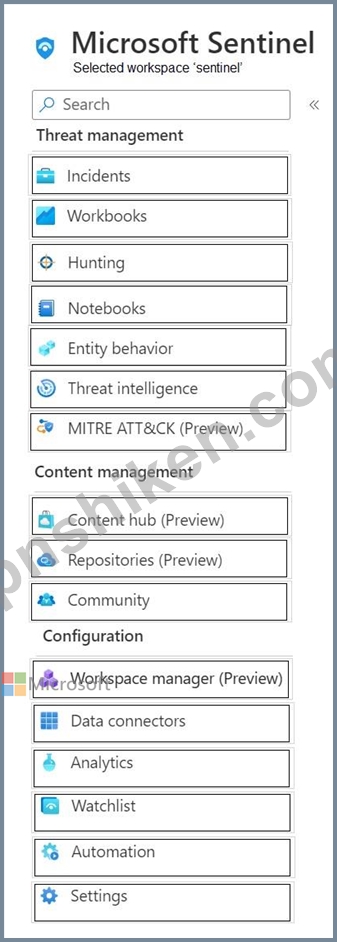
お客様の環境には、Windows Serverが稼働しているオンプレミスサーバーが50台あります。
Microsoft Sentinelワークスペースを含むAzureサブスクリプションをお持ちです。
Microsoft Sentinelを使用してサーバーを監視する予定です。
Azure ポータルから Microsoft Sentinel で以下の操作を実行する必要があります。
- Windows転送イベントデータコネクタを追加します。
- インシデントをトリガーとするプレイブックを作成します。
どの2つの設定を使用すべきですか?回答するには、回答欄で適切な設定を選択してください。注:正解ごとに1ポイントが加算されます。
正解:
Explanation:
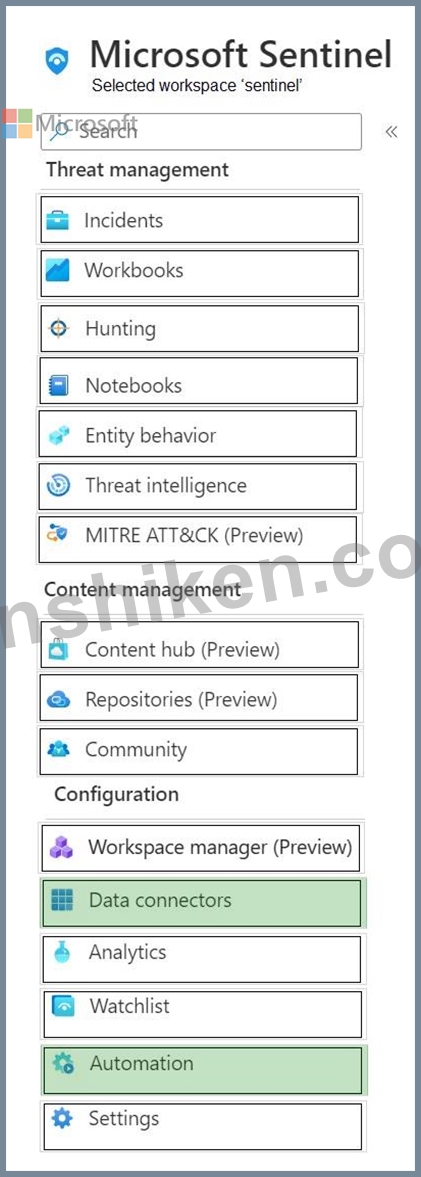
Box 1: Data connectors
Ad the Windows Forwarded Events data connector.
To add the Windows Forwarded Events data connector to Microsoft Sentinel, navigate to Configuration > Data connectors, select the Windows Security Events via AMA connector, open the connector page, and follow the instructions to create a Data Collection Rule (DCR) that targets the desired servers and event logs using the Azure Monitor Agent (AMA).
Box 2: Automation
Create a playbook that has an incident trigger.
To create a Microsoft Sentinel playbook with an incident trigger, navigate to the Automation page in the Defender or Azure portal, select Create > Playbook with incident trigger, and then follow the wizard to provide basic information, establish connections (using the default managed identity), review the settings, and create the playbook. After creation, the playbook opens in the Logic Apps designer, where you can define the automation workflow.

Reference:
https://learn.microsoft.com/en-us/azure/sentinel/automation/create-playbooks

- 質問一覧「149問」
- 質問1 ドラッグアンドドロップ問題 Windows Server を実行し、VMware ...
- 質問2 ホットスポットに関する質問 お客様のネットワークには、contoso...
- 質問3 ホットスポットに関する質問 以下のような構成の Windows Server...
- 質問4 Azure仮想マシンのバックアップからファイルを復元する必要があ...
- 質問5 ワークグループで Windows Server を実行する 10 台のサーバーが...
- 質問6 お客様のネットワークには、Windows Server 2012 R2 フォレスト...
- 質問7 Windows Server を実行し、Hyper-V サーバーの役割がインストー...
- 質問8 お客様のネットワークには、Active Directoryドメインサービス(A...
- 質問9 ケーススタディ1 - ファブリカム社 概要 ファブリカム社は、シカ...
- 質問10 ホットスポットに関する質問 オンプレミスのActive Directoryド...
- 質問11 ホットスポットに関する質問 お客様はAzureサブスクリプションを...
- 質問12 Windows Server を実行し、Web サーバー (IIS) サーバーの役割が...
- 質問13 ドラッグアンドドロップ問題 オンプレミスのIIS Webサーバーがあ...
- 質問14 ドラッグアンドドロップ問題 VM1という名前のAzure仮想マシンが...
- 質問15 3 ノードのフェールオーバー クラスターがあります。 クラスター...
- 質問16 Windows Server を実行する VM1 という名前の Azure 仮想マシン...
- 質問17 ホットスポットに関する質問 お客様のネットワークには、contoso...
- 質問18 ドラッグアンドドロップ問題 Windows Serverを実行し、Hyper-Vサ...
- 質問19 ホットスポットに関する質問 お客様の環境には、Windows Server...
- 質問20 VM1という名前のAzure仮想マシンがあり、その仮想マシンではWind...
- 質問21 注:この問題は、同じシナリオを提示する一連の問題の一部です。
- 質問22 永続メモリを持ち、次の表に示すデータ ボリュームを含む記憶域
- 質問23 Windows Server 2022を実行するServer1という名前のサーバーがあ...
- 質問24 注:この問題は、同じシナリオを提示する一連の問題の一部です。
- 質問25 ホットスポットに関する質問 Server1という名前のオンプレミスサ...
- 質問26 次の表に示すように、Windows Server を実行する 2 つのサーバー...
- 質問27 ケーススタディ1 - ファブリカム社 概要 ファブリカム社は、シカ...
- 質問28 Server1という名前のオンプレミスサーバーがあり、Windows Serve...
- 質問29 お客様はAzureサブスクリプションをお持ちです。そのサブスクリ...
- 質問30 ホットスポットに関する質問 お客様のネットワークには、contoso...
- 質問31 注:この問題は、同じシナリオを提示する一連の問題の一部です。
- 質問32 注:この問題は、同じシナリオを提示する一連の問題の一部です。
- 質問33 お使いのネットワークには、Active Directoryドメインサービ...
- 質問34 ドラッグアンドドロップ問題 Windows Serverが動作するServer1と...
- 質問35 Host1とHost2という名前の2台のサーバーがあり、どちらもWindows...
- 質問36 Server1という名前のオンプレミスサーバーがあり、そのサーバー...
- 質問37 注:この問題は、同じシナリオを提示する一連の問題の一部です。
- 質問38 オンプレミスに、Windows Serverを実行するServer1という名前の...
- 質問39 ホットスポットに関する質問 お客様のネットワークには、Active ...
- 質問40 お客様のオンプレミスネットワークはAzureに接続されています。 ...
- 質問41 以下の表に示すリソースが利用可能です。 (Exhibit) お客様のオ...
- 質問42 お客様のネットワークには、Windows Server 2008 R2 フォレスト...
- 質問43 ドラッグアンドドロップ問題 Windows Serverを実行するServer1と...
- 質問44 ネットワークには、オンプレミスの Active Directory ドメイン ...
- 質問45 お客様の環境には、Windows Serverを実行するオンプレミスの仮想...
- 質問46 ホットスポットに関する質問 お客様のネットワークには、Active ...
- 質問47 ホットスポットに関する質問 お客様のネットワークには、Active ...
- 質問48 あなたは Contoso の管理者で、OS ディスクとデータディスクをそ...
- 質問49 お客様のオンプレミスネットワークには、Active Directoryドメイ...
- 質問50 注:この問題は、同じシナリオを提示する一連の問題の一部です。
- 質問51 注: この質問は、同じシナリオを提示する一連の質問の一部です。...
- 質問52 ホットスポットに関する質問 お客様のネットワークには、オンプ
- 質問53 Windows Serverを実行し、Hyper-Vロールがインストールされてい...
- 質問54 Active Directoryドメインサービス(AD DS)ドメインが存在します...
- 質問55 ホットスポットに関する質問 お客様のネットワークには、contoso...
- 質問56 注: この質問は、同じシナリオを提示する一連の質問の一部です。...
- 質問57 お客様は、以下の表に示すリソースを含む Azure サブスクリプシ...
- 質問58 あなたは、Server1という名前の仮想マシンを含むAzureサブスクリ...
- 質問59 ホットスポットに関する質問 お客様のネットワークには、オンプ
- 質問60 注:この問題は、同じシナリオを提示する一連の問題の一部です。
- 質問61 ホットスポットに関する質問 あなたは、aadds.contoso.com とい...
- 質問62 お客様の環境には、Windows Serverを実行するServer1という名前...
- 質問63 Windows Serverが動作するServer1という名前のサーバーがありま...
- 質問64 ユーザーUser1と、以下の表に示すリソースを含むAzureサブスクリ...
- 質問65 ホットスポットに関する質問 Windows Serverが動作するServer1と...
- 質問66 オンプレミス ネットワークには 2 つのサブネットが含まれていま...
- 質問67 5 つの Azure 仮想マシンがあります。 仮想マシンからパフォーマ...
- 質問68 ドラッグアンドドロップ問題 お客様のオンプレミスネットワーク
- 質問69 ドラッグアンドドロップ問題 Cluster1という名前のWindows Serve...
- 質問70 ドラッグアンドドロップ問題 お使いのネットワークには、Act...
- 質問71 お客様のネットワークには、Active Directoryドメインサービス(A...
- 質問72 注: この質問は、同じシナリオを示す一連の質問の一部です。この...
- 質問73 ホットスポットに関する質問 お客様のネットワークには、Active ...
- 質問74 Azure サブスクリプションがあります。このサブスクリプションに...
- 質問75 お客様はAzureサブスクリプションをご利用中です。このサブスク...
- 質問76 御社はStorage Spaces Directを利用しています。 Storage Space ...
- 質問77 注: この質問は、同じシナリオを提示する一連の質問の一部です。...
- 質問78 ドラッグアンドドロップ問題 お客様は、Vault1 という名前の Azu...
- 質問79 Windows Server 2016 を実行し、IIS が有効になっている Server1...
- 質問80 あなたの会社では記憶域スペース ダイレクトを使用しています。 ...
- 質問81 ケーススタディ1 - ファブリカム社 概要 ファブリカム社は、シカ...
- 質問82 お客様はAzureサブスクリプションをご利用中です。このサブスク...
- 質問83 ローカルグループポリシーエディターのセキュリティ設定拡張機能
- 質問84 お使いのネットワークには、Active Directoryドメインサービ...
- 質問85 ドラッグアンドドロップ問題 お客様のネットワークには、contoso...
- 質問86 お客様はAzureサブスクリプションをお持ちです。そのサブスクリ...
- 質問87 MG1という名前の管理グループがあり、その中にSub1という名前のA...
- 質問88 クラスター共有ボリューム(CSV)の重要な機能の1つに、ボリューム...
- 質問89 多層アプリケーションをホストする VM1、VM2、および VM3 という...
- 質問90 Web サーバー (IIS) サーバーの役割がインストールされている VM...
- 質問91 ホットスポットに関する質問 Windows Serverが動作するServer1と...
- 質問92 ホットスポットに関する質問 1,000人のユーザーを含むActive Dir...
- 質問93 ネットワークには、contoso.com という名前の Active Directory ...
- 質問94 次の表に示すサーバーを含む、Windows Server 2022 リモートデス...
- 質問95 御社はStorage Spaces Directを利用しています。 Storage Space ...
- 質問96 ホットスポットに関する質問 Cluster1という名前のWindows Serve...
- 質問97 ホットスポットに関する質問 VM1という名前のAzure仮想マシンが...
- 質問98 お客様のネットワークには、Active Directoryドメインサービス(A...
- 質問99 お客様のオンプレミスネットワークには、Active Directoryドメイ...
- 質問100 オンプレミス ネットワークと Azure 仮想ネットワークがあります...
- 質問101 ホットスポットに関する質問 Cluster1という名前のStorage Space...
- 質問102 Microsoft Sentinel のデプロイと、100 台の Azure Arc 対応オン...
- 質問103 次の表に示すオンプレミス サーバーがあります。 (Exhibit) Azur...
- 質問104 ドラッグアンドドロップ問題 お客様のネットワークには、Active ...
- 質問105 ケーススタディ1 - ファブリカム社 概要 ファブリカム社は、シカ...
- 質問106 お客様のオンプレミスネットワークには、Active Directoryドメイ...
- 質問107 ケーススタディ1 - ファブリカム社 概要 ファブリカム社は、シカ...
- 質問108 お客様のネットワークには、contoso.com という名前の Active Di...
- 質問109 Windows Server 2019 を実行する Server1 という名前の Hyper-V ...
- 質問110 ケーススタディ1 - ファブリカム社 概要 ファブリカム社は、シカ...
- 質問111 注:この問題は、同じシナリオを提示する一連の問題の一部です。
- 質問112 ホットスポットに関する質問 お客様は、Vault1 という名前の Azu...
- 質問113 お客様はAzureサブスクリプションをご利用中です。このサブスク...
- 質問114 ドラッグアンドドロップ問題 お客様のネットワークには、Active ...
- 質問115 ホットスポットに関する質問 Cluster1という名前のStorage Space...
- 質問116 ネットワークには Active Directory ドメイン サービス (AD DS) ...
- 質問117 VM1という名前のAzure仮想マシンがあり、その仮想マシンではWind...
- 質問118 ドラッグアンドドロップ問題 あなたは、Windows Serverが稼働す...
- 質問119 お客様のネットワークには、Active Directoryドメインサービス(A...
- 質問120 ケーススタディ1 - ファブリカム社 概要 ファブリカム社は、シカ...
- 質問121 次の表に示す Azure キー コンテナーを含む Azure サブスクリプ...
- 質問122 ホットスポットに関する質問 メインデータセンターに、Cluster1...
- 質問123 ドラッグアンドドロップ問題 お客様はAzureサブスクリプションを...
- 質問124 ホットスポットに関する質問 Cluster1という名前のフェールオー...
- 質問125 事例研究2 - コントソ社 概要 Contoso, Ltd.は、シアトルに本社...
- 質問126 ネットワークには、Active Directory ドメイン サービス (AD DS&...
- 質問127 ホットスポットに関する質問 お客様のネットワークには、Active ...
- 質問128 イベントログやパフォーマンスカウンターなどの監視データを収集
- 質問129 リモート デスクトップ セッション ホストの役割サービスを実行...
- 質問130 ホットスポットに関する質問 以下の表に示すサーバーをご利用い
- 質問131 ドラッグアンドドロップ問題 お客様は、VM1 という名前の仮想マ...
- 質問132 ホットスポットに関する質問 Cluster1という名前のHyper-Vフェー...
- 質問133 ドラッグアンドドロップ問題 お客様のネットワークには、Active ...
- 質問134 Cluster1という名前のフェールオーバークラスターがあり、その中...
- 質問135 ホットスポットに関する質問 Server1という名前のオンプレミスサ...
- 質問136 事例研究2 - コントソ社 概要 Contoso, Ltd.は、シアトルに本社...
- 質問137 Windows Server を実行するサーバーがあります。サーバーは、接...
- 質問138 ホットスポットに関する質問 VM1という名前の第1世代Azure仮想マ...
- 質問139 Microsoft Defender for Cloud が有効になっている Azure サブス...
- 質問140 注: この質問は、同じシナリオを提示する一連の質問の一部です。...
- 質問141 お客様はAzureサブスクリプションをご利用中です。このサブスク...
- 質問142 Sub1 という名前の Azure サブスクリプションがあり、その中に R...
- 質問143 ドラッグアンドドロップ問題 Windows Server を実行し、Web サー...
- 質問144 オンプレミス ネットワークと Azure VPN ゲートウェイの間にサイ...
- 質問145 Windows Server 2025 Standardが動作し、Hyper-Vロールがインス...
- 質問146 お客様のネットワークには、Active Directoryドメインサービス(A...
- 質問147 ホットスポットに関する質問 お客様の環境には、Windows Server...
- 質問148 Windows Serverを実行し、Hyper-Vサーバーの役割がインストール...
- 質問149 注: この質問は、同じシナリオを提示する一連の質問の一部です。...
