- ホーム
- Microsoft
- AZ-400 - Designing and Implementing Microsoft DevOps Solutions
- Microsoft.AZ-400.v2026-02-02.q289
- 質問179
有効的なAZ-400問題集はJPNTest.com提供され、AZ-400試験に合格することに役に立ちます!JPNTest.comは今最新AZ-400試験問題集を提供します。JPNTest.com AZ-400試験問題集はもう更新されました。ここでAZ-400問題集のテストエンジンを手に入れます。
AZ-400問題集最新版のアクセス
「609問、30% ディスカウント、特別な割引コード:JPNshiken」
Azure AD ユーザー アカウントを作成する Runbook を展開する予定です。
Runbook が Azure Active Directory の AzurePowerShell コマンドレットを実行できることを確認する必要があります。
このタスクを完了するには、Microsoft Azure ポータルにサインインします。
Runbook が Azure Active Directory の AzurePowerShell コマンドレットを実行できることを確認する必要があります。
このタスクを完了するには、Microsoft Azure ポータルにサインインします。
正解:
以下の解決策を参照してください。
Explanation:
Azure Automation には、Azure PowerShell モジュール バージョン 0.8.6 が付属しています。このモジュールでは、OrgId(Azure Active Directory ユーザー)資格情報ベースの認証を使用して、Azure に非対話型で認証する機能が導入されました。以下の手順で、この認証タイプを使用して Azure Automation が Azure と通信するように設定できます。
ステップ 1: 管理する Azure サブスクリプションに関連付けられている Azure Active Directory を見つけます。
1. Azure Automation を使用して管理する Azure サブスクリプションのサービス管理者として Azure ポータルにログインします。このユーザーは、この Azure サブスクリプションへのアクセス権を持つ任意のユーザーとして Azure ポータルにログインし、「設定」>「管理者」の順にクリックすることで見つけることができます。
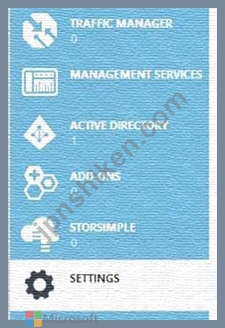
2. Note the name of the directory associated with the Azure subscription you want to manage. You can find this directory by clicking Settings, then Subscriptions.

Step 2: Create an Azure Active Directory user in the directory associated with the Azure subscription to manage:
You can skip this step if you already have an Azure Active Directory user in this directory. and plan to use this OrgId to manage Azure.
1. In the Azure portal click on Active Directory service.

2. Click the directory name that is associated with this Azure subscription.
3. Click on the Users tab and then click the Add User button.
4. For type of user, select "New user in yourorganization." Enter a username for the user to create.
5. Fill out the user's profile. For role, pick "User." Don't enable multi-factor authentication. Multi-factor accounts cannot be used with Azure Automation.
6. Click Create.
7. Jot down the full username (including part after @ symbol) and temporary password.
Step 3: Allow this Azure Active Directory user to manage this Azure subscription.
1. Click on Settings (bottom Azure tab under StorSimple)
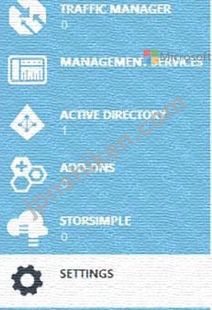
2. Click Administrators
3. Click the Add button. Type the full user name (including part after @ symbol) of the Azure Active Directory user you want to set up to manage Azure. For subscriptions, choose the Azure subscriptions you want this user to be able to manage. Click the check mark.
Step 4: ConfigureAzure Automation to use this Azure Active Directory user to manage this Azure subscription Create an Azure Automation credential asset containing the username and password of the Azure Active Directory user that you have just created. You can create a credential asset in Azure Automation by clicking into an Automation Account and then clicking the Assets tab, then the Add Setting button.

Note: Once you have set up the Azure Active Directory credential in Azure and Azure Automation, you can now manage Azure from Azure Automation runbooks using this credential.
References:
https://azure.microsoft.com/sv-se/blog/azure-automation-authenticating-to-azure-using-azure-active-directory/
Explanation:
Azure Automation には、Azure PowerShell モジュール バージョン 0.8.6 が付属しています。このモジュールでは、OrgId(Azure Active Directory ユーザー)資格情報ベースの認証を使用して、Azure に非対話型で認証する機能が導入されました。以下の手順で、この認証タイプを使用して Azure Automation が Azure と通信するように設定できます。
ステップ 1: 管理する Azure サブスクリプションに関連付けられている Azure Active Directory を見つけます。
1. Azure Automation を使用して管理する Azure サブスクリプションのサービス管理者として Azure ポータルにログインします。このユーザーは、この Azure サブスクリプションへのアクセス権を持つ任意のユーザーとして Azure ポータルにログインし、「設定」>「管理者」の順にクリックすることで見つけることができます。
2. Note the name of the directory associated with the Azure subscription you want to manage. You can find this directory by clicking Settings, then Subscriptions.
Step 2: Create an Azure Active Directory user in the directory associated with the Azure subscription to manage:
You can skip this step if you already have an Azure Active Directory user in this directory. and plan to use this OrgId to manage Azure.
1. In the Azure portal click on Active Directory service.
2. Click the directory name that is associated with this Azure subscription.
3. Click on the Users tab and then click the Add User button.
4. For type of user, select "New user in yourorganization." Enter a username for the user to create.
5. Fill out the user's profile. For role, pick "User." Don't enable multi-factor authentication. Multi-factor accounts cannot be used with Azure Automation.
6. Click Create.
7. Jot down the full username (including part after @ symbol) and temporary password.
Step 3: Allow this Azure Active Directory user to manage this Azure subscription.
1. Click on Settings (bottom Azure tab under StorSimple)
2. Click Administrators
3. Click the Add button. Type the full user name (including part after @ symbol) of the Azure Active Directory user you want to set up to manage Azure. For subscriptions, choose the Azure subscriptions you want this user to be able to manage. Click the check mark.
Step 4: ConfigureAzure Automation to use this Azure Active Directory user to manage this Azure subscription Create an Azure Automation credential asset containing the username and password of the Azure Active Directory user that you have just created. You can create a credential asset in Azure Automation by clicking into an Automation Account and then clicking the Assets tab, then the Add Setting button.
Note: Once you have set up the Azure Active Directory credential in Azure and Azure Automation, you can now manage Azure from Azure Automation runbooks using this credential.
References:
https://azure.microsoft.com/sv-se/blog/azure-automation-authenticating-to-azure-using-azure-active-directory/

- 質問一覧「289問」
- 質問1 Your team uses Azure Pipelines to deploy applications. You n...
- 質問2 あなたの会社では、次のエンドポイントにアプリケーションを展開
- 質問3 Azure DevOps に Project1 という名前のプロジェクトがあり、Azu...
- 質問4 ソース管理には GitHub を使用します。 機密データを含むファイ...
- 質問5 あなたの会社には4つのプロジェクトがあります。各プロジェクト
- 質問6 db1 という名前の Azure SQL データベースを使用するアプリがい...
- 質問7 GitHub でリリースを最終決定しています。 リリースには次のラベ...
- 質問8 あなたの会社では Team Foundation Server 2013 (TFS 2013) を使...
- 質問9 Azure DevOps にプライベート プロジェクトがあり、User1 と Use...
- 質問10 Azure DevOps には、Teams 展示に示されているように 3 つのチー...
- 質問11 You have an Azure Kubernetes Service (AKS) cluster. You need...
- 質問12 You have the Azure DevOps pipeline shown in the following ex...
- 質問13 多くのパッケージ フィードを使用する Azure DevOps プロジェク...
- 質問14 QUESTION NO: 261.NET Core アプリケーションを含む イメージを...
- 質問15 You have several Azure virtual machines that run Windows Ser...
- 質問16 You have an Azure Pipelines pipeline named Pipeline1 that ha...
- 質問17 あなたの会社では、Get ソース管理に Azure DevOps を使用してい...
- 質問18 ホームページのページ読み込みパフォーマンスに基づいてトリガー
- 質問19 あなたの会社では、開発者がオープンソース ライブラリを導入す
- 質問20 Azure DevOps にプロジェクトがあります。 Template1.yml という...
- 質問21 You are defining release strategies for two applications as ...
- 質問22 az400-9940427-main という Azure Web アプリに「MAX_ITEMS」と...
- 質問23 az400-9940427-main という Azure Web アプリに「MAX_ITEMS」と...
- 質問24 あなたの会社には4つのプロジェクトがあります。各プロジェクト
- 質問25 You have an Azure virtual machine named VM1 that runs Linux....
- 質問26 投資計画枯渇スイートのリリース保持ポリシーをどのように合意す
- 質問27 Azure DevOps で Project2 のコード フロー戦略を実装する必要が...
- 質問28 You have an Azure Kubernetes Service (AKS) pod. You need to ...
- 質問29 あなたの会社では Git ソースコード リポジトリを使用しています...
- 質問30 Azure DevOps に Contoso App というプロジェクトがあり、このプ...
- 質問31 Azure Monitor を使用し、Log Analytics ワークスペースを含む A...
- 質問32 次の要件を持つ Azure Data Factory インスタンスをデプロイする...
- 質問33 シミュレーション D:\Deploy.json という名前のテンプレートを D...
- 質問34 Azure Kubernetes Service (AKS) クラスターがあります。 Azure ...
- 質問35 あなたの会社では、次のエンドポイントにアプリケーションを展開
- 質問36 You have an Azure subscription that contains the resources s...
- 質問37 投資計画枯渇スイートのリリース保持ポリシーをどのように合意す
- 質問38 あなたの会社では、Azure Application Insights を使用して、ユ...
- 質問39 Azure パイプラインを使用してビルド成果物を公開する予定です。...
- 質問40 Your company is concerned that when developers introduce ope...
- 質問41 Note: This question is part of a series of questions that pr...
- 質問42 az400-9940427-main という Azure Web アプリのピーク平均応答時...
- 質問43 SIMULATION You need to ensure that an Azure web app named az...
- 質問44 Your company has a project in Azure DevOps. You plan to crea...
- 質問45 GitHub リポジトリを使用するオープンソース ソリューションを開...
- 質問46 az400-9940427-main という名前の Azure Application Insights ...
- 質問47 あなたの会社では、App1 という複雑なアプリのソース コード管理...
- 質問48 repo1 という名前の GitHub リポジトリがあります。 repo1 を re...
- 質問49 Azure DevOps にリリース パイプラインを含むプロジェクトがあり...
- 質問50 あなたの会社には Azure DevOps のプロジェクトがあります。 Azu...
- 質問51 Your company uses Azure DevOps for Git source control. You h...
- 質問52 チームの開発プロセスのセキュリティを強化する必要があります。
- 質問53 投資計画アプリケーション スイートのリリース保持ポリシーをど
- 質問54 あなたの会社では、App1 という複雑なアプリのソース コード管理...
- 質問55 Azure DevOps にプロジェクトがあります。 Template1.yml という...
- 質問56 あなたの会社では、ビルドにクラウドホスト型の Jenkins を使用...
- 質問57 Azure Pipelines を使用して、プロジェクトのビルドとデプロイメ...
- 質問58 You are developing an application. The application source ha...
- 質問59 次の要件を持つ新しいプロジェクトを Azure DevOps にデプロイす...
- 質問60 Azure Automation State Configuration を使用して仮想マシンの...
- 質問61 Azure Kubernetes Service (AKS) を使用して、Docker Trusted Re...
- 質問62 仮想マシン構成の継続的な一貫性を管理するには、Azure Automati...
- 質問63 Azure Monitor を使用し、Log Analytics ワークスペースを含む A...
- 質問64 How should you complete the code to initialize App Center in...
- 質問65 You have a protect in Azure DevOps. You need to associate an...
- 質問66 NuGet パッケージを作成しています。 パッケージを開発チームに...
- 質問67 Azure DevOps ビルド パイプラインを構成します。 ホストされた...
- 質問68 Azure DevOps に継続的インテグレーション/継続的デプロイメント...
- 質問69 あなたの会社では、Azure DevOps を使用してインフラストラクチ...
- 質問70 You need to implement the code flow strategy for Project2 in...
- 質問71 注: この質問は、同じシナリオを提示する一連の質問の一部です。...
- 質問72 図に示すように、Azure DevOps でリリース パイプラインを構成し...
- 質問73 このセクションで質問に回答した後は、そのセクションに戻ること
- 質問74 App1 の認証を設定する必要があります。ソリューションは計画さ...
- 質問75 投資計画アプリケーション スイートの開発者グループとチーム リ...
- 質問76 次の表に示すように、Azure DevOps の 3 つのプロジェクトに対し...
- 質問77 Azure DevOps を使用して iOS アプリケーションを開発しています...
- 質問78 RBAC 対応の Azure Kubermets Service (AKS) 実装があり、AKS 実...
- 質問79 You need to implement Project4. What should you do first?...
- 質問80 Azure Kubernetes Service (AKS) ポッドがあります。 次のアクシ...
- 質問81 あなたの会社には Azure DevOps のプロジェクトがあります。 Azu...
- 質問82 計画された変更をサポートするには、既存の DevOps ツールを置き...
- 質問83 ビルド パイプラインの管理には Azure Pipelines を使用します。...
- 質問84 .NET Core アプリケーションを含むイメージを作成する予定です。...
- 質問85 Azure DevOps のプロジェクトで、複数のパブリックフィードのパ...
- 質問86 Azure DevOps にリリースパイプラインを含むプロジェクトがあり...
- 質問87 現在、DevOps プロセスの一環として JIRA、Jenkins、Octopus を...
- 質問88 投資計画アプリケーション スイートのビルド エージェントとリリ...
- 質問89 org1 という名前の GitHub 組織と Tenant1 という名前の Azure ...
- 質問90 Pool7 内のコンピューターに対して Azure Automation を構成する...
- 質問91 repo1 という名前の Azure Repos リポジトリがあります。 repo1 ...
- 質問92 複数のサーバーでホストされている App1 という名前の Web アプ...
- 質問93 Contoso という名前の Azure DevOps 組織と Azure サブスクリプ...
- 質問94 ソースコード リポジトリとして GitHub Enterprise Server を使...
- 質問95 次の図に示すように、Azure DevOps リリース パイプラインがあり...
- 質問96 Web アプリの Azure Application Insights と共有サービス プラ...
- 質問97 Azure DevOps に Project1 という名前のプロジェクトがあり、こ...
- 質問98 あなたの会社では、次のエンドポイントにアプリケーションを展開
- 質問99 Contoso という名前の Azure DevOps 組織があります。 Windows S...
- 質問100 Contoso という名前の Azure DevOps 組織があります。 Windows S...
- 質問101 You have an Azure subscription. The subscription contains vi...
- 質問102 Azure Artifacts を使用して、Node.js アプリケーションのパッケ...
- 質問103 チームの開発プロセスのセキュリティを強化する必要があります。
- 質問104 タスク3 Project1のデフォルトのプロジェクトチーム用に、「Dash...
- 質問105 投資計画アプリケーション スイートのリリース パイプラインにコ...
- 質問106 GitHub でリリースを最終決定しています。 リリースには次のラベ...
- 質問107 VM1のアラートを設定する必要があります。ソリューションは技術...
- 質問108 You need to configure an Azure web app named az400-9940427-m...
- 質問109 You have a build pipeline in Azure Pipelines. You create a S...
- 質問110 あなたの会社では、Azure DevOps を使用してインフラストラクチ...
- 質問111 次の表に示すように、 2 つのアプリケーションのリリース戦略を...
- 質問112 You need to recommend a solution for deploying charts by usi...
- 質問113 Note: This question is part of a series of questions that pr...
- 質問114 Windows Server を実行する Azure 仮想マシンのベースライン メ...
- 質問115 Project6を実装する必要があります。 どの 3 つのアクションを順...
- 質問116 次の図に示すように、Azure Monitor でアラート ルールを作成し...
- 質問117 az400-9940427-main という名前の Azure Web アプリが、システム...
- 質問118 You have an Azure function hosted in an App Service plan nam...
- 質問119 You need to configure Azure Pipelines to control App2 builds...
- 質問120 Extra beam Fusion SIEM と Azure クラウド プラットフォームを...
- 質問121 共有コードを見つけて分離する必要があります。共有コードは一連
- 質問122 Azure Pipelines を使用して、Appl というアプリをビルドおよび...
- 質問123 app.contoso.com というカスタム ドメインを持つ App1 という名...
- 質問124 Azure DevOps に Contoso App というプロジェクトがあり、このプ...
- 質問125 あなたの会社では新しい Web アプリケーションを構築しています...
- 質問126 Windows Server を実行する Azure 仮想マシンにインターネット ...
- 質問127 Your company plans to deploy an application to the following...
- 質問128 会社には、Subscription1 という名前の Azure サブスクリプショ...
- 質問129 Azure DevOps で Project2 のコード フロー戦略を実装する必要が...
- 質問130 You have an Azure subscription that uses Azure Monitor and c...
- 質問131 署名されたイメージを az4009940427acr1 という名前の Azure Con...
- 質問132 Azure Monitor の Application Insights を使用してログデータを...
- 質問133 あなたの会社では Team Foundation Server 2013 (TFS 2013) を使...
- 質問134 ビルド パイプラインを含む Azure DevOps プロジェクトがありま...
- 質問135 注: この質問は、同じシナリオを提示する一連の質問の一部です。...
- 質問136 (Exhibit)
- 質問137 RG1 という名前のリソース グループを含む Azure サブスクリプシ...
- 質問138 Windows Server 2019 を実行し、Desired State Configuration (D...
- 質問139 会社には、Subscription1 という名前の Azure サブスクリプショ...
- 質問140 Azure Repos で新しい Git リポジトリの設定を構成しています。 ...
- 質問141 VM1 という名前の仮想マシンのブート診断を保存するには、RG1lod...
- 質問142 You are creating a container for an ASP.NET Core app. You ne...
- 質問143 KV1 という名前の Azure キー コンテナーと 3 つの Web サーバー...
- 質問144 大規模なエンタープライズ アプリケーションの Git リポジトリを...
- 質問145 repo1 という名前の Azure Repos Git リポジトリがあります。 SS...
- 質問146 ソースコード リポジトリとして GitHub Enterprise Server を使...
- 質問147 投資計画アプリケーション スイートにはどのような分岐戦略を推
- 質問148 You plan to implement a CI/CD strategy for an Azure Web App ...
- 質問149 You have several Azure Active Directory (Azure AD) accounts....
- 質問150 次の表に示すリソースを含む Azure サブスクリプションがありま...
- 質問151 Extra beam Fusion SIEM と Azure クラウド プラットフォームを...
- 質問152 署名されたイメージを az4009940427acr1 という名前の Azure Con...
- 質問153 投資計画アプリケーション スイートのビルド エージェントとリリ...
- 質問154 Group7 のコンピューターに対して Azure Automation を構成する...
- 質問155 Azure DevOps のダッシュボードにプロジェクト メトリックを推奨...
- 質問156 az400-9940427-main という名前の Azure Web アプリが、システム...
- 質問157 図に示すように、Azure DevOps でリリース パイプラインを構成し...
- 質問158 図に示すように、Azure DevOps でリリース パイプラインを構成し...
- 質問159 複数のサーバーでホストされている App1 という名前の Web アプ...
- 質問160 Group7 のコンピューターに対して Azure Automation を構成する...
- 質問161 You manage build and release pipelines by using Azure DevOps...
- 質問162 RBAC 対応の Azure Kubermets Service (AKS) 実装があり、AKS 実...
- 質問163 ビルド パイプラインを含む Azure DevOps プロジェクトがありま...
- 質問164 Azure DevOps で Project2 のコード フロー戦略を実装する必要が...
- 質問165 あなたの会社では Git ソースコード リポジトリを使用しています...
- 質問166 org1 という名前の GitHub 組織と Tenant1 という名前の Azure ...
- 質問167 Azure Pipelines で使用する YAML テンプレートを設計しています...
- 質問168 You need to ensure that an Azure web app named az400-9940427...
- 質問169 VM1 という名前の仮想マシンのブート診断を保存するには、RG1lod...
- 質問170 Contoso という名前の Azure DevOps 組織があります。 Windows S...
- 質問171 You have a project in Azure DevOps named Contoso App that co...
- 質問172 あなたの会社ではインシデント管理に Service Now を使用してい...
- 質問173 あなたの会社では、3 つのモバイル アプリケーション スイートを...
- 質問174 ソースコードとデプロイメントを管理するには、GitHub Enterpris...
- 質問175 org1 という名前の GitHub 組織と Tenant1 という名前の Azure ...
- 質問176 あなたの会社には Azure サブスクリプションがあります。 会社で...
- 質問177 あなたの会社には Azure DevOps のプロジェクトがあります。 Azu...
- 質問178 Azure Monitor の Application Insights を使用してログ データ...
- 質問179 Azure AD ユーザー アカウントを作成する Runbook を展開する予...
- 質問180 アプリケーションをホストするには、Azure Kubernetes Service (...
- 質問181 ビルド パイプラインを含む Azure DevOps プロジェクトがありま...
- 質問182 シミュレーション VM1 という名前の仮想マシンのブート診断を保...
- 質問183 Azure DevOps デプロイ パイプラインを構成しています。デプロイ...
- 質問184 複数の Azure パイプラインを含む Azure サブスクリプションがあ...
- 質問185 注: この質問は、同じシナリオを提示する一連の質問の一部です。...
- 質問186 RBAC 対応の Azure Kubermets Service (AKS) 実装があり、AKS 実...
- 質問187 Azure DevOps を使用して、App1 という名前のアプリのビルドとデ...
- 質問188 You need to recommend project metrics for dashboards in Azur...
- 質問189 Azure Kubernetes Service (AKS) クラスターのデプロイファイル...
- 質問190 2 つの Azure リージョンでホストされる Web サイトをデプロイす...
- 質問191 You need to configure the alert for VM1. The solution must m...
- 質問192 Note: This question is part of a series of questions that pr...
- 質問193 DRAG DROP You need to use Azure Automation State Configurati...
- 質問194 現在、DevOps プロセスの一環として JIRA、Jenkins、Octopus を...
- 質問195 Azure DevOps に Contoso App というプロジェクトがあり、このプ...
- 質問196 ソースコード リポジトリとして GitHub Enterprise Server を使...
- 質問197 ASP.NET Core アプリ用のコンテナーを作成しています。 イメージ...
- 質問198 You need to configure the alert for VM1. The solution must m...
- 質問199 You are implementing a package management solution for a Nod...
- 質問200 You have an Azure Kubermets Service (AKS) implementation tha...
- 質問201 You have an Azure Kubermets Service (AKS) implementation tha...
- 質問202 Azure DevOps デプロイ パイプラインを構成しています。デプロイ...
- 質問203 Azure DevOps ビルド パイプラインを構成します。 ホストされた...
- 質問204 Azure DevOps のダッシュボードにプロジェクト メトリックを推奨...
- 質問205 You need to execute inline testing of an Azure DevOps pipeli...
- 質問206 アプリケーションを開発中です。アプリケーションのソースには複
- 質問207 You need to recommend a procedure to implement the build age...
- 質問208 ビルド パイプラインを含む Azure DevOps プロジェクトがありま...
- 質問209 3社の顧客向けのプロジェクトを計画しています。各顧客の作業項
- 質問210 ソース管理には Get を使用します。 リポジトリのパフォーマンス...
- 質問211 あなたのチームはアジャイル開発アプローチを採用しています。
- 質問212 次の表に示すアプリ用の YAML ベースの Azure パイプラインを設...
- 質問213 Group7 のコンピューターに対して Azure Automation を構成する...
- 質問214 アプリケーション ビルド プロセスの一環として、GitHub にある ...
- 質問215 ビルド パイプラインを含む Azure DevOps プロジェクトがありま...
- 質問216 Azure DevOps でプロジェクトを作成する予定です。複数の開発者...
- 質問217 計画された変更をサポートするには、既存の DevOps ツールを置き...
- 質問218 あなたの会社では、App1 という複雑なアプリのソース コード管理...
- 質問219 あなたの会社では Web アプリケーションを作成します。 アプリケ...
- 質問220 Note: This question is part of a series of questions that pr...
- 質問221 Project4を実装する必要があります。 まず何をすべきでしょうか?...
- 質問222 あなたの会社では新しい Web アプリケーションを構築しています...
- 質問223 Azure DevOps を使用してビルド パイプラインとリリース パイプ...
- 質問224 プライベート GitHub リポジトリがあります。 Azure Boards でリ...
- 質問225 あなたの会社には、Azure DevOps に Project1 という名前のプロ...
- 質問226 You have a GitHub organization named org1 and an Azure tenan...
- 質問227 あなたの会社では、Azure DevOps で新しいアプリケーションのプ...
- 質問228 あなたの会社には、サードパーティのパブリック クラウドで Linu...
- 質問229 注: この質問は、同じシナリオを提示する一連の質問の一部です。...
- 質問230 RBAC が有効になっている Azure Kubernetes Service (AKS) クラ...
- 質問231 Azure Repos で新しい Git リポジトリの設定を構成しています。 ...
- 質問232 大規模なエンタープライズ アプリケーションの Git リポジトリを...
- 質問233 App1 というアプリがあります。Workspace 1 という Log Analytic...
- 質問234 VM1のアラートを設定する必要があります。ソリューションは技術...
- 質問235 Azure DevOps には、Teams 展示に示されているように 3 つのチー...
- 質問236 Azure DevOps に Contoso App というプロジェクトがあり、このプ...
- 質問237 あなたの会社では、3 つのモバイル アプリケーション スイートを...
- 質問238 Azure DevOps で Project2 のコード フロー戦略を実装する必要が...
- 質問239 あなたの会社では Team Foundation Server 2013 (TFS 2013) を使...
- 質問240 会社には、Subscription1 という名前の Azure サブスクリプショ...
- 質問241 転送要件を満たすには、Azure DevOps エージェント プールへのア...
- 質問242 You have an Azure DevOps organization named Contoso. You nee...
- 質問243 次の表に示すように、 2 つのアプリケーションのリリース戦略を...
- 質問244 Azure DevOps プロジェクトがあります。 Azure Resource Manager...
- 質問245 You have an Azure DevOps pipeline that is used to deploy a N...
- 質問246 You have a project Azure DevOps. You plan to create a build ...
- 質問247 Azure Kubernetes Service (AKS) クラスターがあります。 Azure ...
- 質問248 Azure DevOps でプロジェクトのセキュリティ検証戦略を設計して...
- 質問249 ソースコードリポジトリとして GitHub を使用しています。 commi...
- 質問250 あなたの会社では、Git ソース管理に Azure DevOps を使用してい...
- 質問251 Contoso RG と Contoso Dev という 2 つのリソース グループ、Co...
- 質問252 あなたの会社では、Azure DevOps を使用してインフラストラクチ...
- 質問253 Azure Pipelines を使用して、WebApp1 という名前の Azure Web ...
- 質問254 As part of your application build process, you need to deplo...
- 質問255 az400-11566895-kv という名前の Azure Key Vault に保存されて...
- 質問256 アプリのソースコードを含む GitHub リポジトリがあります。 ソ...
- 質問257 You need to deploy Internet Information Services (IIS) to an...
- 質問258 仮想マシン構成の継続的な一貫性を管理するには、Azure Automati...
- 質問259 次の図に示すような Azure DevOps パイプラインがあります。 (Ex...
- 質問260 Azure パイプラインを使用してビルド成果物を公開する予定です。...
- 質問261 次の表に示すアプリ用のYAMLベースのAzureパイプラインを設計し...
- 質問262 Azure Application Insights を使用して、Azure Web アプリの正...
- 質問263 Azure Pipelines を使用して、アプリのビルドとデプロイメントを...
- 質問264 You need to execute inline testing of an Azure DevOps pipeli...
- 質問265 Azure DevOps を使用して、ビルド パイプラインとデプロイ パイ...
- 質問266 Azure DevOps でプロジェクトのセキュリティ検証戦略を設計して...
- 質問267 Project1 のビルド エージェントを実装するための手順を推奨する...
- 質問268 ソース管理には Get を使用します。 ファイルを削除し、変更をコ...
- 質問269 az400-11566895-main という名前の Azure Web アプリに対して CI...
- 質問270 You use Get for source control. You delete a file, commit th...
- 質問271 次の図に示すように、Azure DevOps リリース パイプラインがあり...
- 質問272 Azure DevOps に Contoso App というプロジェクトがあり、このプ...
- 質問273 Azure DevOps にリリースパイプラインを含むプロジェクトがあり...
- 質問274 Azure DevOps プロジェクトがあります。 Azure Resource Manager...
- 質問275 GitHub リポジトリを使用するオープンソース ソリューションを開...
- 質問276 az40010480345acr1 という名前のリポジトリが dotnetapp という...
- 質問277 RBAC 対応クラスターで、Helm と Title を使用してチャートを Az...
- 質問278 あなたの会社には Azure DevOps のプロジェクトがあります。 Azu...
- 質問279 Azure DevOps で Project2 のコード フロー戦略を実装する必要が...
- 質問280 注: この質問は、同じシナリオを提示する一連の質問の一部です。...
- 質問281 HOTSPOT You are using PowerShell to administer Azure Log Ana...
- 質問282 You have an application named App1 that has a custom domain ...
- 質問283 あなたの会社では、ソース管理にGitHubを使用しています。GitHub...
- 質問284 org1 という名前の GitHub 組織と Tenant1 という名前の Azure ...
- 質問285 あなたの会社では、Git ソース管理に Azure DevOps を使用してい...
- 質問286 You have a GitHub organization that contains three users nam...
- 質問287 Azure Artifacts を使用して、Node.js アプリケーションのパッケ...
- 質問288 投資計画アプリケーション スイートにはどのような分岐戦略を推
- 質問289 RBAC 対応の Azure Kubermets Service (AKS) 実装があり、AKS 実...

