- ホーム
- Microsoft
- PL-300J - Microsoft Power BI Data Analyst (PL-300日本語版)
- Microsoft.PL-300J.v2026-08-15.q217
- 質問6
有効的なPL-300J問題集はJPNTest.com提供され、PL-300J試験に合格することに役に立ちます!JPNTest.comは今最新PL-300J試験問題集を提供します。JPNTest.com PL-300J試験問題集はもう更新されました。ここでPL-300J問題集のテストエンジンを手に入れます。
PL-300J問題集最新版のアクセス
「472問、30% ディスカウント、特別な割引コード:JPNshiken」
ホットスポットに関する質問
Power Query エディターを使用して、Products という名前のクエリを作成します。
製品は以下の表に示す結果を返します。

各行にProductCategoryとProductIDの単一の組み合わせが表示されるようにデータを整形する必要があります。
ProductIDList列はどのように設定すればよいですか?回答するには、回答欄で適切なオプションを選択してください。
注:正解ごとに1ポイントが加算されます。

Power Query エディターを使用して、Products という名前のクエリを作成します。
製品は以下の表に示す結果を返します。
各行にProductCategoryとProductIDの単一の組み合わせが表示されるようにデータを整形する必要があります。
ProductIDList列はどのように設定すればよいですか?回答するには、回答欄で適切なオプションを選択してください。
注:正解ごとに1ポイントが加算されます。
正解:
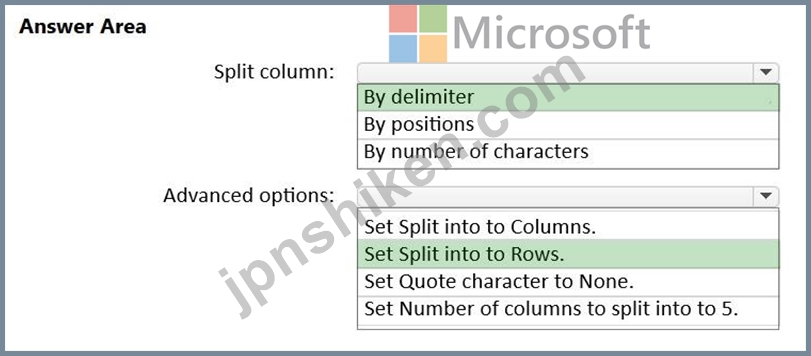
Explanation:
Box 1: By delimiter
In the Power Query Editor, you can use the Split Column by Delimiter feature and its Advanced options to split a column of delimited values into multiple rows.
Box 2: Set Split into to Rows
The following process results in a table where each row contains a single, unique combination of Product Category and ProductID.
Steps to Split a Column into Rows using Power Query
1. Select the Column: In the Power Query Editor, click the header of the "ProductIDList" column to select it.
2. Access Split Column: Go to the Home tab, click the drop-down arrow next to Split Column, and select By Delimiter. (Alternatively, you can right-click the column header and choose Split Column > By Delimiter).
*-> 3. Configure the Delimiter: The ProductIDValues values in your example are inside curly braces and separated by a comma and a space (e.g., {1, 4, ...}).
3a. In the Split a column by delimiter dialog box, select or enter the delimiter used to separate the IDs. In this case, you'll need to use a Custom delimiter of a comma followed by a space (, ).
3b. You should also specify to split at Each occurrence of the delimiter.
*-> 4. Set Split into Rows: Crucially, under the Advanced options, select the Rows option in the Split into dropdown menu. The default is typically Columns, so switching to Rows is the key step to achieve your desired output.
5. Confirm: Click OK to apply the transformation. Power Query will expand each ProductID value into its own row, automatically repeating the corresponding Product Category value for each new row.
Reference:
https://learn.microsoft.com/en-us/power-query/split-columns-delimiter

- 質問一覧「217問」
- 質問1 Summary1という名前のPower BIレポートを作成します。 Summary1...
- 質問2 Power Queryに、CustomerとAddressという名前の2つのMicrosoft E...
- 質問3 Power BIのデータモデルには、「Sales」と「Date」という名前の2...
- 質問4 ドラッグアンドドロップ問題 オンプレミスの Microsoft SQL Serv...
- 質問5 ホットスポットに関する質問 Power BIのセマンティックモデルに...
- 質問6 ホットスポットに関する質問 Power Query エディターを使用して...
- 質問7 Power BIのセマンティックモデルには、2つのクエリが含まれてい...
- 質問8 Power BI Desktop から、新しいデータセットとレポートを Power ...
- 質問9 PowerBlレポートがあります 1000万行を含むDalaiという名前のテ...
- 質問10 ホットスポットに関する質問 あなたは、CityDataとSalesという名...
- 質問11 ホットスポットに関する質問 次の図に示すように、Power BI レポ...
- 質問12 次の図に示すようなビジュアルを含むPower BIレポートがあります...
- 質問13 次の表に示す列をインポートする「States」という名前のPower BL...
- 質問14 ホットスポットに関する質問 次の図に示すような意味モデルがあ
- 質問15 Power BI データ モデルに Employees という名前のテーブルがあ...
- 質問16 売上データを含むPower BIレポート「RPT1」を作成します。データ...
- 質問17 Power BIを使用して、ユーザーが今月の5つの販売地域の売上実績...
- 質問18 ホットスポットに関する質問 Azure SQLデータベースのデータを含...
- 質問19 ホットスポットに関する質問 在庫を分析するためのPower BIモデ...
- 質問20 注:この問題は、同じシナリオを提示する一連の問題の一部です。
- 質問21 ホットスポットに関する質問 50個のJSONファイルを含むフォルダ...
- 質問22 Power BIのセマンティックモデルには、以下のテーブルが含まれて...
- 質問23 注: この質問は、同じシナリオを使用する一連の質問の一部です。...
- 質問24 Rビジュアルを使用して、500,000人の顧客のマップを作成します。...
- 質問25 Power BI モデルに Sales という名前のテーブルがあります。Sale...
- 質問26 注:この問題は、同じシナリオを提示する一連の問題の一部です。
- 質問27 ユーザーからの苦情を収録したCSVファイルがあります。このファ...
- 質問28 ホットスポットに関する質問 セマンティックモデルには、Salesと...
- 質問29 縦型ディスプレイに表示されるPower BIレポートがあります。 レ...
- 質問30 事例研究2 - Contoso Ltd 概要 既存の環境 Contoso, Ltd.はアウ...
- 質問31 ホットスポットに関する質問 以下の表に示すAzure SQLデータベー...
- 質問32 ドラッグアンドドロップ問題 Power Query Editorを使用して、Cus...
- 質問33 ホットスポットに関する質問 Power BIのセマンティックモデルに...
- 質問34 「Expenses」という名前のPower BIクエリがあり、以下のデータが...
- 質問35 行レベルセキュリティ(RLS)を使用するように構成されたPower BI...
- 質問36 ドラッグアンドドロップ問題 Power Query Editorを使用して、次...
- 質問37 注:この質問は、同じシナリオを提示する一連の質問の一部です。
- 質問38 顧客セグメントを分析するためのPower B1レポートを作成していま...
- 質問39 ホットスポットに関する質問 Power BIのセマンティックモデルに...
- 質問40 ユーザーがQ&A機能を使って自然言語で質問できるように、Mic...
- 質問41 注:この問題は、同じシナリオを提示する一連の問題の一部です。
- 質問42 データセットを含むPowerBlワークスペースがあります。レポート...
- 質問43 あなたの販売システムには、以下の表に示すようなテーブルが含ま
- 質問44 Store という名前のテーブルを含む Power BI モデルを作成してい...
- 質問45 注:この質問は、同じシナリオを提示する一連の質問の一部です。
- 質問46 ドラッグアンドドロップ問題 Power BIで、現在の年を含めた10年...
- 質問47 ホットスポットに関する質問 バスケット分析を実行するために、M...
- 質問48 ホットスポットに関する質問 次の図に示すようなPower BIデータ...
- 質問49 あなたは、以下の図に示すようなグラフを作成する予定です。 (Ex...
- 質問50 Power BI Desktopを使用して、CustomerとContactsという名前の2...
- 質問51 ケーススタディ4 - Contoso Ltd 2 概要 Contoso, Ltd.はスポーツ...
- 質問52 Power BI レポートがあります。このレポートには、複数の地域の...
- 質問53 注:この質問は、同じシナリオを提示する一連の質問の一部です。
- 質問54 棒グラフと縦棒グラフを含むレポートがあります。棒グラフは、顧
- 質問55 Power BIサービスでは、複数のダッシュボードを含むアプリワーク...
- 質問56 次の表に示すようなデータがMicrosoft Excelのワークシートに格...
- 質問57 You have a CSV file that contains user complaints. The file ...
- 質問58 Power BI Desktop には、次の図に示すようなテーブルがあります...
- 質問59 Microsoft Power BI レポートがあります。PBIX ファイルのサイズ...
- 質問60 次の図に示すようなテーブルとリレーションシップを持つPower BI...
- 質問61 ホットスポットに関する質問 貴社は営業部門の20名のユーザーにP...
- 質問62 ドラッグアンドドロップ問題 Microsoft Excelのワークブックに2...
- 質問63 ケーススタディ1 - Litware, Inc. 概要 Litware, Inc.は、Micros...
- 質問64 ドラッグアンドドロップ問題 テーブルを含む Power BI セマンテ...
- 質問65 ケーススタディ1 - Litware, Inc. 概要 Litware, Inc.は、Micros...
- 質問66 データソースとしてAzure SQLデータベースを使用する、Report1と...
- 質問67 Power BI モデルに Expenses という名前のテーブルがあります。...
- 質問68 ケーススタディ1 - Litware, Inc. 概要 Litware, Inc.は、Micros...
- 質問69 1 ページを含む Power BI レポートがあります。このページには、...
- 質問70 Power BI Desktop を使用してレポートを作成する予定です。この...
- 質問71 Microsoft Teams で完全にホストされているプロジェクト管理アプ...
- 質問72 ドラッグアンドドロップ問題 Power BIで財務報告書を作成してい...
- 質問73 ケーススタディ4 - Contoso Ltd 2 概要 Contoso, Ltd.はスポーツ...
- 質問74 ホットスポットに関する質問 Power BI Desktop を使用して Azure...
- 質問75 ビジネスインテリジェンス(BI)開発者が、オンプレミスのMicrosof...
- 質問76 ホットスポットに関する質問 次の図に示すフィールドを含むPower...
- 質問77 ケーススタディ1 - Litware, Inc. 概要 Litware, Inc.は、Micros...
- 質問78 貴社の営業部門向けに、Microsoft SharePointフォルダーにあるMi...
- 質問79 PowerBiDesktopを使用してPowerBlレポートを作成しています。 ト...
- 質問80 次の図に示すように、データのアドホック探索を可能にするビジュ
- 質問81 3ページを含むレポートがあります。ページの1つには、KPIの視覚...
- 質問82 次の図に示すように、「Carriers」というテーブルからの情報を表...
- 質問83 次の図に示すPower BIモデルがあります。 (Exhibit) マネージャ...
- 質問84 行レベルのセキュリティ(RLS)を使用するPowerBlレポートがあり...
- 質問85 主要な影響要因のビジュアルを使用して、注文で販売されるアイテ
- 質問86 ケーススタディ1 - Litware, Inc. 概要 Litware, Inc.は、Micros...
- 質問87 AzureBlobストレージ内の数十のフラットファイルから供給される...
- 質問88 PowerQueryEditorでクエリを開きます。 各列の空の値のパーセン...
- 質問89 ドラッグアンドドロップ問題 注:この問題は、同じシナリオを提
- 質問90 Note: This question is part of a series of questions that pr...
- 質問91 事例研究2 - Contoso Ltd 概要 既存の環境 Contoso, Ltd.はアウ...
- 質問92 ドラッグアンドドロップ問題 あなたは、複数の地域における過去1...
- 質問93 販売トランザクションを含む Azure SQL データベースがあります...
- 質問94 ホットスポットに関する質問 Power BI サービスで表示されるレポ...
- 質問95 事例研究3 - ノースウィンド・トレーダーズ 概要。概要全般 ノー...
- 質問96 事例研究3 - ノースウィンド・トレーダーズ 概要。概要全般 ノー...
- 質問97 注: この質問は、同じシナリオを提示する一連の質問の一部です。...
- 質問98 Power BI サービス内のセマンティック モデルへのライブ接続を使...
- 質問99 Power QueryにCustomerとAddressという名前の2つのMicrosoft Exc...
- 質問100 ホットスポットに関する質問 次の図に示すような関係性を持つセ
- 質問101 ドラッグアンドドロップ問題 Microsoft Power BI レポートに含め...
- 質問102 Power BI Desktop でセマンティック モデルを作成する必要があり...
- 質問103 ドラッグアンドドロップ問題 Microsoft Power BI Desktop を使用...
- 質問104 Power BIのセマンティックモデルには、以下のデータが含まれてい...
- 質問105 Power BIのセマンティックモデルには、DimCustomerとFactOrderDe...
- 質問106 ドラッグアンドドロップ問題 Microsoft Power BLワークスペース...
- 質問107 Power BI Desktop プロジェクトで、DirectQuery を使用してオン...
- 質問108 ケーススタディ1 - Litware, Inc. 概要 Litware, Inc.は、Micros...
- 質問109 注:この質問は、同じシナリオを提示する一連の質問の一部です。
- 質問110 DS1という名前のデータセットとRPT1という名前のレポートを含むW...
- 質問111 AzureSQLデータベースから複数のテーブルをインポートするPBiXフ...
- 質問112 Model1という名前のPower BIセマンティックモデルがあり、それが...
- 質問113 あなたは複数ページからなる販売レポートを作成しています。各ペ
- 質問114 注:この問題は、同じシナリオを用いた一連の問題の一部です。便
- 質問115 ホットスポットに関する質問 以下の表に示すアイテムを含むFabri...
- 質問116 マーケティング部門向けのPower BIレポートがあります。 本レポ...
- 質問117 ユーザーがカスタムテーマを使用する「ReportA」という名前のPow...
- 質問118 ホットスポットに関する質問 Power Query Editor を使用すると、...
- 質問119 ユーザーの苦情を含む CSV ファイルがあります。このファイルに...
- 質問120 ホットスポットに関する質問 Power BI モデルには、Sales という...
- 質問121 Power BI レポートに積み上げ棒グラフが含まれています。 凡例に...
- 質問122 注:この問題は、同じシナリオを用いた一連の問題の一部です。便
- 質問123 Power BI のデータ モデルがあり、時間の経過に伴う製品の売上を...
- 質問124 注:この質問は、同じシナリオを提示する一連の質問の一部です。
- 質問125 Power BI レポートにページが含まれています。そのページには以...
- 質問126 次のテーブルを含むPowerBlデータセットをインポートします。 * ...
- 質問127 ホットスポットに関する質問 あなたは、図に示されているPower B...
- 質問128 Power BI データ モデルに Employees という名前のテーブルがあ...
- 質問129 Power BIレポート用のデータモデルを構築しています。 データは...
- 質問130 ホットスポットに関する質問 次の図に示すような権限を持つセマ
- 質問131 Power BI セマンティック モデルには、Query 1、Query2 という名...
- 質問132 ケーススタディ4 - Contoso Ltd 2 概要 Contoso, Ltd.はスポーツ...
- 質問133 注: この質問は、同じシナリオを使用する一連の質問の一部です。...
- 質問134 ホットスポットに関する質問 Power BIのセマンティックモデル用...
- 質問135 Microsoft ExcelスプレッドシートからデータをインポートするPow...
- 質問136 1,500行のデータを含む見込み顧客リストがあります a。リストに...
- 質問137 注:この質問は、同じシナリオを提示する一連の質問の一部です。
- 質問138 次の図に示すようなPower BIデータモデルがあります。 (Exhibit)...
- 質問139 データセット、レポート、ダッシュボードを含むInventoryという...
- 質問140 MicrosoftPowerBlレポートがあります。PBIXファイルのサイズは55...
- 質問141 注:この問題は、同じシナリオを提示する一連の問題の一部です。
- 質問142 ホットスポットに関する質問 レポートページには、以下の図に示
- 質問143 ホットスポットに関する質問 次の図に示すように、「トランザク
- 質問144 ホットスポットに関する質問 学校の出席状況を分析するためのPow...
- 質問145 Power BIReportServer用に最適化されたPowerBIDesktopを使用して...
- 質問146 貴社の営業部門向けに、Microsoft Excelからデータをインポート...
- 質問147 ホットスポットに関する質問 Power BI モデルには、以下のテーブ...
- 質問148 ホットスポットに関する質問 Power BI レポートにページが含まれ...
- 質問149 ホットスポットに関する質問 縦棒グラフの視覚化を作成していま
- 質問150 ケーススタディ4 - Contoso Ltd 2 概要 Contoso, Ltd.はスポーツ...
- 質問151 スター型スキーマの国ディメンションとして使用するクエリを作成
- 質問152 複数のビジュアルを含むPower BIレポートを作成しています。 レ...
- 質問153 カードの視覚化を含むレポートがあります。 設計の労力を最小限
- 質問154 Power BI レポートがあります。このレポートには、相互作用のあ...
- 質問155 ホットスポットに関する質問 次の図に示すように、クイックメジ
- 質問156 ホットスポットに関する質問 パフォーマンスアナライザーの結果
- 質問157 ケーススタディ1 - Litware, Inc. 概要 Litware, Inc.は、Micros...
- 質問158 ホットスポットに関する質問 Power BI Desktop にレポートがあり...
- 質問159 ホットスポットに関する質問 Power BI レポートに「総売上」とい...
- 質問160 ドラッグアンドドロップ問題 Power BLワークスペースに、Salesと...
- 質問161 Power BI モデルに Employee という名前のテーブルがあります。...
- 質問162 ホットスポットに関する質問 次の表に示すテーブルを含む Micros...
- 質問163 ドラッグアンドドロップ問題 倉庫在庫データに関するレポートを
- 質問164 ホットスポットに関する質問 Power BIのセマンティックモデルを...
- 質問165 MicrosoftPowerBlダッシュボードがあります。 ダッシュボードの...
- 質問166 ホットスポットに関する質問 Dim_Date という名前のテーブルがあ...
- 質問167 Power BI モデルには、Population と Date という名前の 2 つの...
- 質問168 注:この問題は、同じシナリオを用いた一連の問題の一部です。便
- 質問169 ReportAという名前のPower BIレポートがあります。 ユーザーがデ...
- 質問170 Power Query Editorを使用して、次のステップを作成します。 = T...
- 質問171 Power BI を使用して顧客向けの売上請求書を作成する予定です。...
- 質問172 ユーザーがQ&Aを使用して自然言語の質問を行えるように、Micros...
- 質問173 Power BI 用のカスタムビジュアライゼーションを作成する必要が...
- 質問174 インポートされたデータセットには、以下のテーブルが含まれてい
- 質問175 Page1、Page2、Page3という名前の3つのページを含むPower B1レポ...
- 質問176 ホットスポットに関する質問 Power Query エディターを使用して...
- 質問177 PowerBIレポートをMicrosoftSharePointOnlineページに埋め込みま...
- 質問178 事例研究3 - ノースウィンド・トレーダーズ 概要。概要全般 ノー...
- 質問179 ケーススタディ1 - Litware, Inc. 概要 Litware, Inc.は、Micros...
- 質問180 ホットスポットに関する質問 Power BI レポートがあります。 以...
- 質問181 ホットスポットに関する質問 次の図に示すように、Power BI のビ...
- 質問182 Orders、Date、Cityという名前の3つのテーブルを含むMicrosoftPo...
- 質問183 事例研究3 - ノースウィンド・トレーダーズ 概要。概要全般 ノー...
- 質問184 ドラッグアンドドロップ問題 100個のCSVファイルを含むフォルダ...
- 質問185 次の図に示すように、Power Query エディターを使用して「日付」...
- 質問186 注:この質問は、同じシナリオを提示する一連の質問の一部です。
- 質問187 事例研究2 - Contoso Ltd 概要 既存の環境 Contoso, Ltd.はアウ...
- 質問188 Microsoft SharePoint Online サイトがあり、そこに複数のドキュ...
- 質問189 ドーナツグラフと集合縦棒グラフを含むレポートがあります。これ
- 質問190 Power BI モデルに Date という名前のテーブルがあります。Date ...
- 質問191 注:この問題は、同じシナリオを提示する一連の問題の一部です。
- 質問192 Power BI サービスにデータセットを公開します。このデータセッ...
- 質問193 あなたは、自社の北西部地域における営業エリアの売上レポートを
- 質問194 Power BI レポートに棒グラフが含まれています。この棒グラフは...
- 質問195 Power BI レポートに集合棒グラフが含まれています。このグラフ...
- 質問196 注:この質問は、同じシナリオを提示する一連の質問の一部です。
- 質問197 売上データと約1,000行を含むテーブルがあります。 テーブル内の...
- 質問198 大きなデータセットをPowerQueryEditorにインポートします。 列...
- 質問199 Power Query Editorを使用して、CustomersとLocationsという名前...
- 質問200 ホットスポットに関する質問 Power Query Editorを使用して、Pow...
- 質問201 Microsoft Power BI レポートがあります。PBIX ファイルのサイズ...
- 質問202 ホットスポットに関する質問 次の図に示すようなPower BIデータ...
- 質問203 ケーススタディ1 - Litware, Inc. 概要 Litware, Inc.は、Micros...
- 質問204 以下の図に示すデータセットがあります。 (Exhibit) 視覚化デー...
- 質問205 Microsoft Power BI レポートがあります。PBIX ファイルのサイズ...
- 質問206 ホットスポットに関する質問 Power BIのセマンティックモデルに...
- 質問207 ホットスポットに関する質問 次の図に示すように、powerbi.comを...
- 質問208 注:この問題は、同じシナリオを提示する一連の問題の一部です。
- 質問209 Microsoft Power BI Desktop を使用してレポートを作成します。 ...
- 質問210 ダッシュボードと4つのレポートを含むアプリワークスペースがあ
- 質問211 ホットスポットに関する質問 Power BI テナントにワークスペース...
- 質問212 売上データ用のPower BIモデルがあります。年初来の売上を計算す...
- 質問213 BI Finance という名前のデータセットを含む BI Data という名前...
- 質問214 会社の売上のさまざまな視覚化を表示するPowerBIダッシュボード...
- 質問215 貴社には、最近20個のPower BIダッシュボードを作成したパワーユ...
- 質問216 事例研究3 - ノースウィンド・トレーダーズ 概要。概要全般 ノー...
- 質問217 Model1という名前のPower BIセマンティックモデルがあり、その中...
