- ホーム
- Microsoft
- AZ-800J - Administering Windows Server Hybrid Core Infrastructure (AZ-800日本語版)
- Microsoft.AZ-800J.v2026-10-14.q159
- 質問99
有効的なAZ-800J問題集はJPNTest.com提供され、AZ-800J試験に合格することに役に立ちます!JPNTest.comは今最新AZ-800J試験問題集を提供します。JPNTest.com AZ-800J試験問題集はもう更新されました。ここでAZ-800J問題集のテストエンジンを手に入れます。
AZ-800J問題集最新版のアクセス
「342問、30% ディスカウント、特別な割引コード:JPNshiken」
シミュレーション
Azure File Sync を使用して、SRV1 上の C:\app の内容を share1 という名前の Azure ファイル共有に複製する必要があります。
必要なソースファイルは、\\dc1.contoso.com\install という名前のフォルダにあります。
このタスクを完了するには、指定されたコンピューターにログインしてください。
Azure File Sync を使用して、SRV1 上の C:\app の内容を share1 という名前の Azure ファイル共有に複製する必要があります。
必要なソースファイルは、\\dc1.contoso.com\install という名前のフォルダにあります。
このタスクを完了するには、指定されたコンピューターにログインしてください。
正解:
Step 1:
Create a sync group and a cloud endpoint
A sync group defines the sync topology for a set of files. Endpoints within a sync group are kept in sync with each other. A sync group must contain one cloud endpoint, which represents an Azure file share and one or more server endpoints. A server endpoint represents a path on a registered server. A server can have server endpoints in multiple sync groups. You can create as many sync groups as you need to appropriately describe your desired sync topology.
A cloud endpoint is a pointer to an Azure file share.
To create a sync group, in the Azure portal, go to your Storage Sync Service, and then select + Sync group:

In the pane that opens, enter the following information to create a sync group with a cloud endpoint:
Sync group name: The name of the sync group to be created. This name must be unique within the Storage Sync Service, but can be any name that is logical for you.
Subscription: The subscription where you deployed the Storage Sync Service in Deploy the Storage Sync Service.
Storage account: If you select Select storage account, another pane appears in which you can select the storage account that has the Azure file share that you want to sync with.
Azure file share: The name of the Azure file share with which you want to sync Enter: share1 Step 2:
Create a server endpoint
A server endpoint represents a specific location on a registered server, such as a folder on a server volume.
To add a server endpoint, go to the newly created sync group. Under Server endpoints, select
+Add server endpoint. The Add server endpoint blade opens. Enter the following information to create a server endpoint:
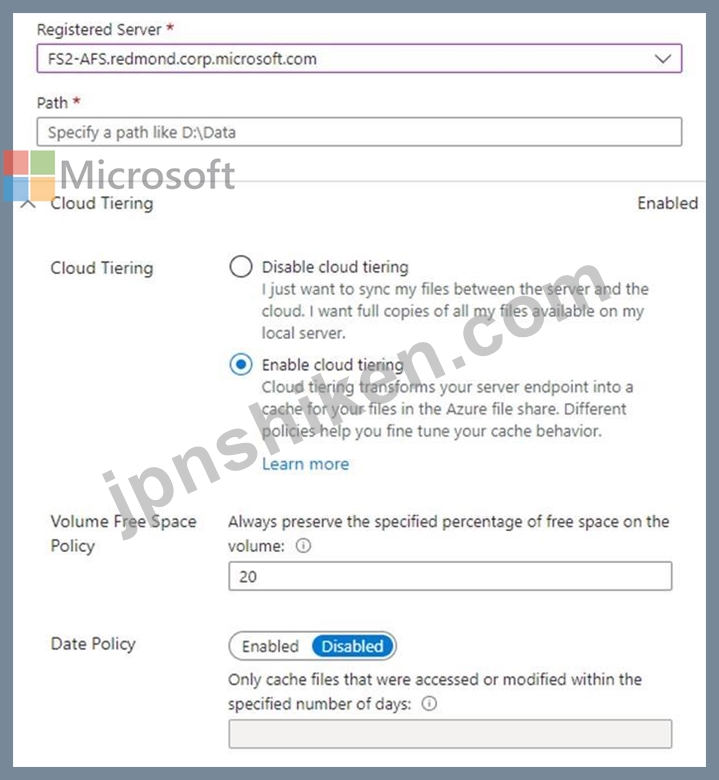
Registered server: The name of the server or cluster where you want to create the server endpoint.
Enter: SRV1
Path: The path on the Windows Server to be synced to the Azure file share. The path can be a folder (for example, D:\Data), volume root (for example, D:\), or volume mount point (for example, D:\Mount).
Enter: C\app
Step 3:
Create an Azure File Sync server endpoint
To add a server endpoint, go to the newly created sync group. Under Server endpoints, select
+Add server endpoint. The Add server endpoint blade opens. Enter the following information to create a server endpoint:

* Registered server: The name of the server or cluster where you want to create the server endpoint.
Enter: SRV1
* Path: The path on the Windows Server to be synced to the Azure file share. The path can be a folder (for example, D:\Data), volume root (for example, D:\), or volume mount point (for example, D:\Mount).
Enter: C:\app
Step 4:
To add the server endpoint, select Create. Your files are now kept in sync across your Azure file share and Windows Server.
Reference:
https://learn.microsoft.com/en-us/azure/storage/file-sync/file-sync-deployment-guide
https://learn.microsoft.com/en-us/azure/storage/file-sync/file-sync-server-endpoint-create
Create a sync group and a cloud endpoint
A sync group defines the sync topology for a set of files. Endpoints within a sync group are kept in sync with each other. A sync group must contain one cloud endpoint, which represents an Azure file share and one or more server endpoints. A server endpoint represents a path on a registered server. A server can have server endpoints in multiple sync groups. You can create as many sync groups as you need to appropriately describe your desired sync topology.
A cloud endpoint is a pointer to an Azure file share.
To create a sync group, in the Azure portal, go to your Storage Sync Service, and then select + Sync group:
In the pane that opens, enter the following information to create a sync group with a cloud endpoint:
Sync group name: The name of the sync group to be created. This name must be unique within the Storage Sync Service, but can be any name that is logical for you.
Subscription: The subscription where you deployed the Storage Sync Service in Deploy the Storage Sync Service.
Storage account: If you select Select storage account, another pane appears in which you can select the storage account that has the Azure file share that you want to sync with.
Azure file share: The name of the Azure file share with which you want to sync Enter: share1 Step 2:
Create a server endpoint
A server endpoint represents a specific location on a registered server, such as a folder on a server volume.
To add a server endpoint, go to the newly created sync group. Under Server endpoints, select
+Add server endpoint. The Add server endpoint blade opens. Enter the following information to create a server endpoint:
Registered server: The name of the server or cluster where you want to create the server endpoint.
Enter: SRV1
Path: The path on the Windows Server to be synced to the Azure file share. The path can be a folder (for example, D:\Data), volume root (for example, D:\), or volume mount point (for example, D:\Mount).
Enter: C\app
Step 3:
Create an Azure File Sync server endpoint
To add a server endpoint, go to the newly created sync group. Under Server endpoints, select
+Add server endpoint. The Add server endpoint blade opens. Enter the following information to create a server endpoint:
* Registered server: The name of the server or cluster where you want to create the server endpoint.
Enter: SRV1
* Path: The path on the Windows Server to be synced to the Azure file share. The path can be a folder (for example, D:\Data), volume root (for example, D:\), or volume mount point (for example, D:\Mount).
Enter: C:\app
Step 4:
To add the server endpoint, select Create. Your files are now kept in sync across your Azure file share and Windows Server.
Reference:
https://learn.microsoft.com/en-us/azure/storage/file-sync/file-sync-deployment-guide
https://learn.microsoft.com/en-us/azure/storage/file-sync/file-sync-server-endpoint-create

- 質問一覧「159問」
- 質問1 ホットスポットに関する質問 お客様のオンプレミスネットワーク
- 質問2 お客様のネットワークには、Active Directoryドメインサービス(A...
- 質問3 ホットスポットに関する質問 Server1という名前のWindows Server...
- 質問4 サイト間 VPN を使用して Azure 仮想ネットワークに接続されてい...
- 質問5 事例研究1 - ファブリカム社 概要 ファブリカム社は、ニューヨー...
- 質問6 お客様のネットワークには、Active Directoryドメインサービス(A...
- 質問7 Windows Serverを実行するServer1という名前のサーバーがありま...
- 質問8 事例研究1 - ファブリカム社 概要 ファブリカム社は、ニューヨー...
- 質問9 お客様のネットワークには、contoso.com という名前の単一ドメイ...
- 質問10 ホットスポットに関する質問 貴社はボストンとモントリオールに
- 質問11 Azure Active Directory (Azure AD) テナントと同期するオンプレ...
- 質問12 Windows Admin Center で新しいコンテナ イメージを作成する際に...
- 質問13 お客様のネットワークには、オンプレミスのActive Directoryドメ...
- 質問14 ホットスポットに関する質問 オンプレミスにWindows Serverを実...
- 質問15 注: この質問は、同じシナリオを提示する一連の質問の一部です。...
- 質問16 お客様のネットワークには、adatum.com という名前の Active Dir...
- 質問17 ドラッグアンドドロップ問題 Windows Serverを実行し、Hyper-Vサ...
- 質問18 注: この質問は、同じシナリオを提示する一連の質問の一部です。...
- 質問19 お客様のネットワークには、Active Directoryドメインサービス(A...
- 質問20 ホットスポットに関する質問 以下の表に示すサーバーをご利用い
- 質問21 Hyper-Vホストをお持ちです。 利用可能なスケジューラを評価して...
- 質問22 お客様はAzureサブスクリプションを所有しています。このサブス...
- 質問23 ホットスポットに関する質問 お客様のネットワークには、contoso...
- 質問24 お客様はAzureサブスクリプションをお持ちです。そのサブスクリ...
- 質問25 ホットスポットに関する質問 お客様のネットワークには、contoso...
- 質問26 ホットスポットに関する質問 お客様のネットワークには、contoso...
- 質問27 お客様のネットワークには、Active Directoryドメインサービス(A...
- 質問28 ホットスポットに関する質問 Dockerホストをお持ちです。 Python...
- 質問29 ドラッグアンドドロップ問題 Windows Serverを実行するServer1と...
- 質問30 ネットワークには、Active Directory ドメイン サービス (AD DS)...
- 質問31 Server1という名前のサーバーがあり、Windows Serverが動作して...
- 質問32 ホットスポットに関する質問 オンプレミスのActive Directoryド...
- 質問33 シミュレーション Azure ファイル共有を同期するには、SRV1 を登...
- 質問34 Windows Server を実行する Server1 という名前のオンプレミス ...
- 質問35 PowerShellで、仮想マシンに接続して手動で接続を構成することな...
- 質問36 Azure Active Directory (Azure AD) テナントと同期するオンプレ...
- 質問37 Windows Serverが動作するServer1という名前のサーバーがあり、...
- 質問38 注:この問題は、同じシナリオを提示する一連の問題の一部です。
- 質問39 次の表に示すドライブを含む VM1 という名前の Azure 仮想マシン...
- 質問40 ホットスポットに関する質問 お客様のオンプレミスネットワーク
- 質問41 オンプレミスの Windows デバイスがあります。 VNet1 という名前...
- 質問42 ホットスポットに関する質問 Windows Serverを実行するServer1と...
- 質問43 注:この問題は、同じシナリオを提示する一連の問題の一部です。
- 質問44 ホットスポットに関する質問 お使いのネットワークには、Mic...
- 質問45 ホットスポットに関する質問 お客様のネットワークには、contoso...
- 質問46 事例研究2 - コントソ社 概要 Contoso, Ltd.は、シアトルに本社...
- 質問47 お客様のネットワークには、Active Directoryドメインサービス(A...
- 質問48 シミュレーション DC2がcontoso.comのスキーママスターであるこ...
- 質問49 Windows Server を実行し、次の構成を持つ VM1 という名前の Azu...
- 質問50 お客様のネットワークには、contoso.com という名前の Active Di...
- 質問51 次の資料に示すように、VM1 という名前の仮想マシンを含む Azure...
- 質問52 New-AzVM コマンドレットを使用して仮想マシンを作成することに...
- 質問53 ホットスポットに関する質問 お客様のネットワークには、adatum....
- 質問54 ホットスポットに関する質問 お客様のネットワークには、Active ...
- 質問55 ホットスポットに関する質問 Active Directoryドメインサービス(...
- 質問56 お客様の環境には、Windows Serverが稼働しているオンプレミスサ...
- 質問57 注:この問題は、同じシナリオを提示する一連の問題の一部です。
- 質問58 注: この質問は、同じシナリオを提示する一連の質問の一部です。...
- 質問59 Windows Server を実行し、DHCP サーバーの役割がインストールさ...
- 質問60 事例研究2 - コントソ社 概要 Contoso, Ltd.は、シアトルに本社...
- 質問61 ホットスポットに関する質問 Host1という名前のWindows Server 2...
- 質問62 事例研究1 - ファブリカム社 概要 ファブリカム社は、ニューヨー...
- 質問63 事例研究1 - ファブリカム社 概要 ファブリカム社は、ニューヨー...
- 質問64 次の表に示すように、オンプレミス環境にはWindows Serverを実行...
- 質問65 事例研究2 - コントソ社 概要 Contoso, Ltd.は、シアトルに本社...
- 質問66 注: この質問は、同じシナリオを提示する一連の質問の一部です。...
- 質問67 シミュレーション DC1にfabrikam.comという名前の新しいプライマ...
- 質問68 注: この質問は、同じシナリオを提示する一連の質問の一部です。...
- 質問69 お客様のネットワークには、Active Directoryドメインサービス(A...
- 質問70 お客様のネットワークには、contoso.com という名前の Active Di...
- 質問71 Active Directoryドメイン内に、Server1という名前のファイルサ...
- 質問72 ホットスポットに関する質問 お客様のオンプレミスネットワーク
- 質問73 注:このセクションには、同じシナリオと問題に関する複数の質問
- 質問74 Windows Serverが動作するServer1という名前のサーバーがありま...
- 質問75 Windows Serverが動作するファイルサーバーが5台あります。 ファ...
- 質問76 ドラッグアンドドロップ問題 Windows Serverを実行するServer1と...
- 質問77 ケーススタディ3 - ADatum Corporation 概要 会社情報 ADatum Co...
- 質問78 お客様のオンプレミスネットワークのIPアドレス範囲は10.0.0.0/2...
- 質問79 ホットスポットに関する質問 お客様のネットワークには、次の図
- 質問80 ケーススタディ3 - ADatum Corporation 概要 会社情報 ADatum Co...
- 質問81 貴社は、オンプレミスのディレクトリサービスに関する要件なしに
- 質問82 ケーススタディ3 - ADatum Corporation 概要 会社情報 ADatum Co...
- 質問83 お客様のネットワークには、contoso.com という名前の Active Di...
- 質問84 以下のリストから、クラウド階層化を有効にした状態で、クールフ
- 質問85 次の表に示すドメイン コントローラーを含む Active Directory ...
- 質問86 注:この問題は、同じシナリオを提示する一連の問題の一部です。
- 質問87 シミュレーション MemberServersという名前のグループにのみ適用...
- 質問88 シミュレーション グループポリシー設定を使用して、\\dc1.conto...
- 質問89 あなたは管理者であり、AD DSパーティションを作成および管理す...
- 質問90 コントソ社のIT部門は、オンプレミス環境に新しいバージョンのMS...
- 質問91 お客様のネットワークには、複数サイトからなるActive Directory...
- 質問92 お使いのネットワークには、Active Directoryドメインサービ...
- 質問93 ドラッグアンドドロップ問題 contoso.com という名前の単一ドメ...
- 質問94 ホットスポットに関する質問 Azure サブスクリプションには、VNe...
- 質問95 WindowsコンテナをホストするServer1という名前のサーバーがあり...
- 質問96 シミュレーション SRV1からIPアドレスを取得するすべてのDHCPク...
- 質問97 あなたは、.NET Coreを必要とするコンテナ化されたアプリケーシ...
- 質問98 お客様のネットワークには、Active Directoryドメインサービス(A...
- 質問99 シミュレーション Azure File Sync を使用して、SRV1 上の C:\ap...
- 質問100 ドラッグアンドドロップ問題 お客様はAzureサブスクリプションを...
- 質問101 あなたは最近、Carla社に管理者として入社しました。チームリー...
- 質問102 ホットスポットに関する質問 お客様のネットワークには、contoso...
- 質問103 お客様のネットワークには、Active Directoryドメインサービス(A...
- 質問104 ホットスポットに関する質問 お客様のネットワークには、以下の
- 質問105 シミュレーション あなたはシアトルのサイトにあるDC3という名前...
- 質問106 Hyper-V サーバーの役割がインストールされている 2 つのサーバ...
- 質問107 Windows Server を実行する VM1 という名前の Azure 仮想マシン...
- 質問108 注: この質問は、同じシナリオを提示する一連の質問の一部です。...
- 質問109 事例研究1 - ファブリカム社 概要 ファブリカム社は、ニューヨー...
- 質問110 お客様のネットワークには、Active Directoryフォレストが含まれ...
- 質問111 注:この問題は、同じシナリオを提示する一連の問題の一部です。
- 質問112 シミュレーション SRV1上のVM1という名前の仮想マシンに対して、...
- 質問113 ネットワーク管理アプリケーションを実行する Server1 という名...
- 質問114 事例研究1 - ファブリカム社 概要 ファブリカム社は、ニューヨー...
- 質問115 ドラッグアンドドロップ問題 お客様のネットワークには、contoso...
- 質問116 シミュレーション SRV1上のWindows Admin Centerを使用してDC1を...
- 質問117 御社はニューヨークにオフィスを構えていますね。 このネットワ
- 質問118 ホットスポットに関する質問 Windows Server 2022が動作するServ...
- 質問119 シミュレーション SRV1のシステムイベントログからエラーを収集...
- 質問120 管理者は、ファイルの分類プロパティに基づいて、ファイルを自動
- 質問121 ケーススタディ3 - ADatum Corporation 概要 会社情報 ADatum Co...
- 質問122 ホットスポットに関する質問 Windows Serverが動作するサーバー...
- 質問123 ドラッグアンドドロップ問題 お客様のネットワークには、contoso...
- 質問124 ドラッグアンドドロップ問題 contoso.com という名前の新しい Ac...
- 質問125 注:この問題は、同じシナリオを提示する一連の問題の一部です。
- 質問126 ホットスポットに関する質問 お客様のネットワークには、contoso...
- 質問127 ホットスポットに関する質問 お客様のネットワークには、Azure A...
- 質問128 ホットスポットに関する質問 お客様のネットワークには、contoso...
- 質問129 注:この問題は、同じシナリオを提示する一連の問題の一部です。
- 質問130 Windows Server 2019 を実行する Server1 というサーバーがあり...
- 質問131 ホットスポットに関する質問 次の表に示すように、オンプレミス
- 質問132 ホットスポットに関する質問 お客様のネットワークには、Active ...
- 質問133 ネットワークには Active Domain Services (AD DS) フォレストが...
- 質問134 ホットスポットに関する質問 お客様のネットワークには、Active ...
- 質問135 Windows Serverが動作するサーバーをお持ちですね。 SMBダイレク...
- 質問136 ホットスポットに関する質問 Windows Serverを実行するAzure仮想...
- 質問137 ホットスポットに関する質問 お客様のオンプレミスネットワーク
- 質問138 ドラッグアンドドロップ問題 分散型クラスター展開を使用してい
- 質問139 ホットスポットに関する質問 あなたはAzureサブスクリプションと...
- 質問140 事例研究1 - ファブリカム社 概要 ファブリカム社は、ニューヨー...
- 質問141 ドラッグアンドドロップ問題 お客様はAzureサブスクリプションを...
- 質問142 事例研究1 - ファブリカム社 概要 ファブリカム社は、ニューヨー...
- 質問143 事例研究2 - コントソ社 概要 Contoso, Ltd.は、シアトルに本社...
- 質問144 お客様のオンプレミスデータセンターに、DC1 という名前が付けら...
- 質問145 ホットスポットに関する質問 お客様のネットワークには、クライ
- 質問146 あなたの会社には本店と支社があります。2 つのオフィスは、WAN ...
- 質問147 オンプレミスの Active Directory ドメイン サービス (AD DS) ド...
- 質問148 ケーススタディ3 - ADatum Corporation 概要 会社情報 ADatum Co...
- 質問149 Host1という名前のサーバーがあり、そのサーバーにはHyper-Vサー...
- 質問150 DNS サーバーの役割がインストールされているサーバーがあります...
- 質問151 お客様のネットワークには、Active Directoryドメインサービス(A...
- 質問152 ホットスポットに関する質問 お客様のネットワークには、contoso...
- 質問153 シミュレーション SRV1上のscope1という名前のDHCPスコープがク...
- 質問154 ホットスポットに関する質問 Azure File Syncを使用して、Server...
- 質問155 オンプレミス ネットワークには、contoso.com という名前の Acti...
- 質問156 シミュレーション BranchAdminsグループのメンバーのパスワード...
- 質問157 あなたは、既存のサーバーファームからメンバーホストを廃止する
- 質問158 ドラッグアンドドロップ問題 Windows Serverが動作するServer1と...
- 質問159 ドラッグアンドドロップ問題 Windows Serverコンテナホストをデ...
