有効的なAZ-500問題集はJPNTest.com提供され、AZ-500試験に合格することに役に立ちます!JPNTest.comは今最新AZ-500試験問題集を提供します。JPNTest.com AZ-500試験問題集はもう更新されました。ここでAZ-500問題集のテストエンジンを手に入れます。
AZ-500問題集最新版のアクセス
「520問、30% ディスカウント、特別な割引コード:JPNshiken」
Use the following login credentials as needed:
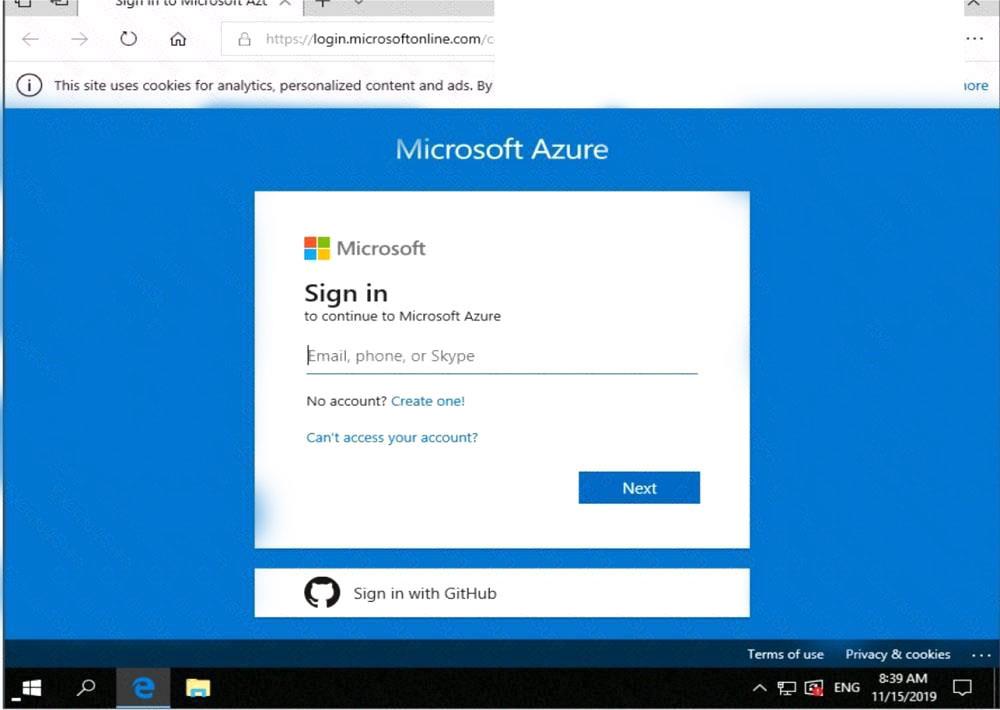
To enter your username, place your cursor in the Sign in box and click on the username below.
To enter your password, place your cursor in the Enter password box and click on the password below.
Azure Username: [email protected]
Azure Password: Ag1Bh9!#Bd
The following information is for technical support purposes only:
Lab Instance: 10598168


You need to create a new Azure Active Directory (Azure AD) directory named 10598168.onmicrosoft.com.
The new directory must contain a user named [email protected] who is configured to sign in by using Azure Multi-Factor Authentication (MFA).
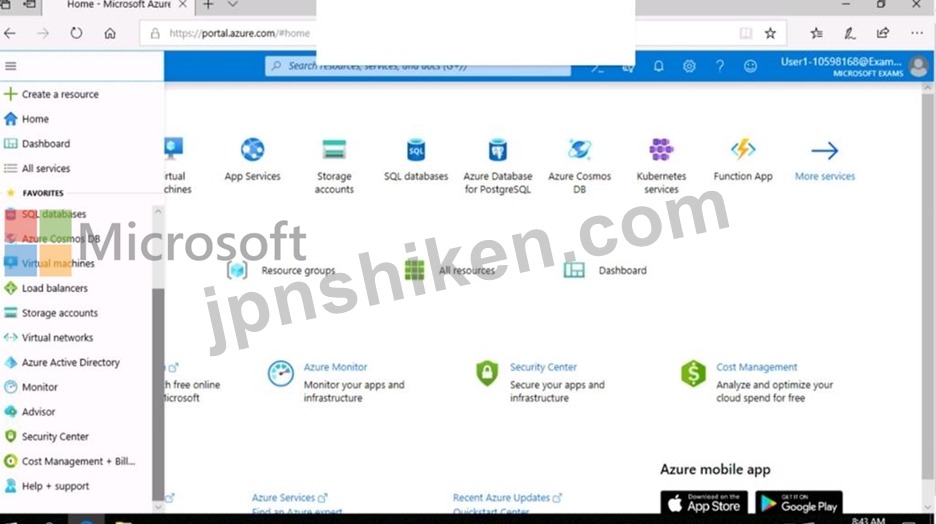
To complete this task, sign in to the Azure portal.
To enter your username, place your cursor in the Sign in box and click on the username below.
To enter your password, place your cursor in the Enter password box and click on the password below.
Azure Username: [email protected]
Azure Password: Ag1Bh9!#Bd
The following information is for technical support purposes only:
Lab Instance: 10598168
You need to create a new Azure Active Directory (Azure AD) directory named 10598168.onmicrosoft.com.
The new directory must contain a user named [email protected] who is configured to sign in by using Azure Multi-Factor Authentication (MFA).
To complete this task, sign in to the Azure portal.
正解:
See the explanation below.
Explanation
Step 1: Create an Azure Active Directory tenant
1. Browse to the Azure portal and sign in with an account that has an Azure subscription.
2. Select the plus icon (+) and search for Azure Active Directory.
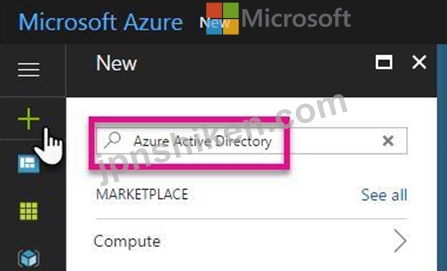
3. 検索結果から Azure Active Directory を選択します。

4. 「作成」を選択します。
5. 組織名と初期ドメイン名(10598168)を入力します。「作成」を選択します。ディレクトリが作成されます。

が作成されます。
6. ディレクトリの作成が完了したら、新しいディレクトリを管理するための情報ボックスを選択します。次に、テナント ユーザーを追加します。
ステップ2: Azure Active Directoryテナントユーザーを作成する
7. Azure ポータルで、Azure Active Directory フライアウトが表示されていることを確認します。


8. 「管理」で「ユーザー」を選択します。
9. 「すべてのユーザー」を選択し、「+ 新しいユーザー」を選択します。
10. 通常ユーザーテナントの名前とユーザー名(user1)を入力します。一時パスワードも表示できます。完了したら、「作成」を選択します。
名前: ユーザー1
ユーザー名: [email protected]

参照:
https://docs.microsoft.com/ja-jp/power-bi/developer/azure-active-directory-tenant の作成
Explanation
Step 1: Create an Azure Active Directory tenant
1. Browse to the Azure portal and sign in with an account that has an Azure subscription.
2. Select the plus icon (+) and search for Azure Active Directory.
3. 検索結果から Azure Active Directory を選択します。
4. 「作成」を選択します。
5. 組織名と初期ドメイン名(10598168)を入力します。「作成」を選択します。ディレクトリが作成されます。
が作成されます。
6. ディレクトリの作成が完了したら、新しいディレクトリを管理するための情報ボックスを選択します。次に、テナント ユーザーを追加します。
ステップ2: Azure Active Directoryテナントユーザーを作成する
7. Azure ポータルで、Azure Active Directory フライアウトが表示されていることを確認します。
8. 「管理」で「ユーザー」を選択します。
9. 「すべてのユーザー」を選択し、「+ 新しいユーザー」を選択します。
10. 通常ユーザーテナントの名前とユーザー名(user1)を入力します。一時パスワードも表示できます。完了したら、「作成」を選択します。
名前: ユーザー1
ユーザー名: [email protected]
参照:
https://docs.microsoft.com/ja-jp/power-bi/developer/azure-active-directory-tenant の作成

- 質問一覧「456問」
- 質問1 Azureサブスクリプションをお持ちです。サブスクリプションには...
- 質問2 次の表に示す Azure Information Protection の条件があります。...
- 質問3 プラットフォーム保護要件を満たすには、Role1 を作成する必要が...
- 質問4 次の表に示すリソースを含む Azure サブスクリプションがありま...
- 質問5 Azure Active Directory (Azure AD) データ コネクタを備えた Az...
- 質問6 ネットワークには、Azure Active Directory (Azure AD) テナント...
- 質問7 You create an Azure subscription. You need to ensure that yo...
- 質問8 You have an Azure Active Directory (Azure AD) tenant that co...
- 質問9 Note: This question is part of a series of questions that pr...
- 質問10 グループ1とグループ2のメンバーシップは何ですか? 回答するには...
- 質問11 次の表に示すユーザーを含む Azure Active Directory (Azure AD)...
- 質問12 次の表に示す Azure キー コンテナーが含まれる Sub1 という名前...
- 質問13 Sub1 という名前の Azure サブスクリプションがあります。Sub1 ...
- 質問14 オンプレミス ネットワークと Azure サブスクリプションがありま...
- 質問15 User8 に RG4、RG5、RG6 の所有者ロールを割り当てます。 User8 ...
- 質問16 You need to ensure that users can access VM0. The solution m...
- 質問17 あなたは、次の表に示すオフィスを持つ Contoso, Ltd. という会...
- 質問18 次の表に示すリソースを含む Azure サブスクリプションがありま...
- 質問19 次の表に示すユーザーを含む Azure Active Directory (Azure AD)...
- 質問20 contoso2023 というストレージ アカウントを含む Azure サブスク...
- 質問21 次の表に示す Azure 仮想ネットワークがあります。 (Exhibit) 次...
- 質問22 Azure 仮想マシンのセットへのジャストインタイム (JIT) VM アク...
- 質問23 3 つの Azure サブスクリプションと User1 という名前のユーザー...
- 質問24 You have an Azure Active Directory (Azure AD) tenant. You ha...
- 質問25 Contosostorage1 という名前の Azure ストレージ アカウントと C...
- 質問26 Sub2 内の仮想マシン間のネットワーク通信のセキュリティを評価...
- 質問27 Azure サブスクリプションには、identity という名前のマネージ...
- 質問28 次のリソースを含む Azure サブスクリプションがあります。 * Az...
- 質問29 仮想ネットワークを含むAzureサブスクリプションがあります。仮...
- 質問30 次のリソースを含む Azure サブスクリプションがあります。 * Az...
- 質問31 次の表に示すリソースを含む Azure サブスクリプションがありま...
- 質問32 グループ1とグループ2のメンバーシップは何ですか? 回答するには...
- 質問33 ネットワークには、Microsoft Entra テナントに同期する adatum....
- 質問34 新しい Azure Active Directory (Azure AD) テナントに関連付け...
- 質問35 あなたの会社にはシアトルとニューヨークの2つのオフィスがあり
- 質問36 You have an Azure Active Directory (Azure AD) tenant that co...
- 質問37 次の表に示すユーザーを含む、contoso1812.onmicrosoft.com とい...
- 質問38 You create a new Azure subscription. You need to ensure that...
- 質問39 You are evaluating the effect of the application security gr...
- 質問40 次の表に示すように、Azure サブスクリプションにリソースを作成...
- 質問41 You have an Azure subscription that contains the custom role...
- 質問42 You have an Azure subscription that contains a web app named...
- 質問43 Sub1 という名前の Azure サブスクリプションがあり、その中に L...
- 質問44 データとアプリケーションの要件を満たすように WebApp1 を構成...
- 質問45 You plan to connect several Windows servers to the WS1164165...
- 質問46 use the following login credentials as needed: To enter your...
- 質問47 100 台の仮想マシンを含む Azure サブスクリプションがあります...
- 質問48 Azure Key Vault を含む Azure サブスクリプションをお持ちです...
- 質問49 プラットフォーム保護の要件を満たすには、Microsoft Antimalwar...
- 質問50 Microsoft Entra テナントにリンクされた Azure サブスクリプシ...
- 質問51 Homepage-AGW という名前の Azure Application Gateway 経由の接...
- 質問52 次の表に示すユーザーを含む Azure Active Directory (Azure AD)...
- 質問53 contoso.com という名前の Azure Active Directory (Azure AD) ...
- 質問54 次の表に示すリソースを含む Azure サブスクリプションがありま...
- 質問55 新しい Azure Active Directory (Azure AD) テナントに関連付け...
- 質問56 Group1 の ID およびアクセス要件を満たす必要があります。 何を...
- 質問57 VNET1 と VNET2 という名前の 2 つの Azure 仮想ネットワークの...
- 質問58 次の表に示す Azure リソースがあります。 (Exhibit) 次の要件を...
- 質問59 : 2 ホットスポット Which virtual networks in Sub1 can User2 ...
- 質問60 Azure AD テナントと、App1 という名前のアプリケーションがあり...
- 質問61 次の表に示すリソースを含む Azure サブスクリプションがありま...
- 質問62 contoso.com という Azure Active Directory (Azure AD) テナン...
- 質問63 100 台の仮想マシンを含む Azure サブスクリプションがあります...
- 質問64 次の表に示す仮想マシンを含む Azure サブスクリプションがあり...
- 質問65 App1 という名前の Web アプリと Vault1 という名前の Azure キ...
- 質問66 Sub1 という名前の Azure サブスクリプションがあり、その中に L...
- 質問67 Azure Key Vault を作成する必要があります。ソリューションでは...
- 質問68 ASG1 と ASG2 に対して計画された変更を実装します。 ASG1 はど...
- 質問69 次の表に示す Azure 仮想マシンがあります。 (Exhibit) 米国東部...
- 質問70 Azure AD アプリケーションの登録と同意の構成が ID とアクセス...
- 質問71 Azure AD アプリケーションの登録と同意の構成が ID とアクセス...
- 質問72 : 2 HOTSPOT Which virtual networks in Sub1 can User2 modify ...
- 質問73 You have an Azure subscription named Sub1. Sub1 contains a v...
- 質問74 Azure サブネットにバインドされたネットワーク セキュリティ グ...
- 質問75 Appl という名前の Azure Web アプリを含む Azure サブスクリプ...
- 質問76 KeyVault1 という名前の Azure キー コンテナーと、次の表に示す...
- 質問77 You have an Azure subscription that contains the virtual mac...
- 質問78 Azure Active Directory (Azure AD) テナントとルート管理グルー...
- 質問79 Azure サブスクリプションをお持ちです。 次の要件を満たす Azur...
- 質問80 Sub2 内の仮想マシン間のネットワーク通信のセキュリティを評価...
- 質問81 次の表に示す Azure 仮想マシンがあります。 (Exhibit) どの仮想...
- 質問82 オンプレミス ネットワークには、Active Directory ドメイン サ...
- 質問83 プラットフォーム保護の要件を満たすには、Microsoft Antimalwar...
- 質問84 Azure Active Directory (Azure AD) テナントを含む Azure サブ...
- 質問85 100 台の仮想マシンを含む Azure サブスクリプションがあります...
- 質問86 Use the following login credentials as needed: To enter your...
- 質問87 次の表に示すユーザーを含む contoso.com という名前の Azure Ac...
- 質問88 次の表に示す仮想マシンを含む Azure サブスクリプションがあり...
- 質問89 アクセスレビューを設定する必要があります。このレビューは新し
- 質問90 次の表に示すように、Azure サブスクリプションにリソースを作成...
- 質問91 You have an Azure subscription that contains a storage accou...
- 質問92 次の表に示すリソースを含む Azure サブスクリプションがありま...
- 質問93 次の表に示す仮想マシンを含む Azure サブスクリプションがあり...
- 質問94 Azure Active Directory (Azure AD) コネクタ、Query1 という名...
- 質問95 次の表に示す仮想ネットワークを含む Azure サブスクリプション...
- 質問96 次の表に示す仮想ネットワークを含む Azure サブスクリプション...
- 質問97 Lab Task Task 6 You need to configure a Microsoft SQL server...
- 質問98 次の表に示す項目が含まれる KeyVault1 という名前の Azure キー...
- 質問99 Sub2 内の仮想マシン間のネットワーク通信のセキュリティを評価...
- 質問100 Azure Active Directory (Azure AD)のハイブリッド構成をご利用...
- 質問101 次の表に示すリソースが含まれる Subscription1 という名前の Az...
- 質問102 3つのストレージアカウント、SQLという名前のAzure SQLマネージ...
- 質問103 注: この質問は、同じシナリオを提示する一連の質問の一部です。...
- 質問104 Vault1 という名前の Azure キー コンテナーを含む Azure サブス...
- 質問105 What is the membership of Group1 and Group2? To answer, sele...
- 質問106 次の表に示すユーザーを含む contoso.com という名前の Azure Ac...
- 質問107 You have an Azure subscription that contains 100 virtual mac...
- 質問108 You have an Azure subscription named Subscription1 that cont...
- 質問109 次の表に示す Azure 仮想マシンがあります。 (Exhibit) どの仮想...
- 質問110 You have the Azure virtual networks shown in the following t...
- 質問111 次の表に示す仮想ネットワークを含む、Sub1 および Sub2 という...
- 質問112 注: この質問は、同じシナリオを提示する一連の質問の一部です。...
- 質問113 次の表に示すカスタム ロールを含む Azure サブスクリプションが...
- 質問114 ネットワークには、Azure Active Directory (Azure AD) と同期す...
- 質問115 You have an Azure subscription that contains the alerts show...
- 質問116 Azure Active Directory (Azure AD) コネクタ、Query1 という名...
- 質問117 必要に応じて次のログイン資格情報を使用します。 ユーザー名を
- 質問118 次の表に示す仮想マシンを含む Azure サブスクリプションがあり...
- 質問119 プラットフォーム保護の要件を満たすには、AKS1 をデプロイする...
- 質問120 Azure サブスクリプションをお持ちです。 ストレージ アカウント...
- 質問121 You have an Azure subscription that contains a resource grou...
- 質問122 次の表に示すリソースを含む Azure サブスクリプションがありま...
- 質問123 次の内容を含む File1.yaml という名前のファイルがあります。 (...
- 質問124 次の表に示すユーザーを含む Azure Active Directory (Azure AD)...
- 質問125 You have an Azure Active Directory (Azure AD) tenant named c...
- 質問126 You have the Azure key vaults shown in the following table. ...
- 質問127 User8 に RG4、RG5、RG6 の所有者ロールを割り当てます。 User8 ...
- 質問128 App1 をホストするために使用する仮想マシンを推奨する必要があ...
- 質問129 次の表に示すように、Azure サブスクリプションにリソースを作成...
- 質問130 You are configuring network connectivity for two Azure virtu...
- 質問131 KeyVault1 という名前の Azure キー コンテナーと、次の表に示す...
- 質問132 Azure Key Vault を作成する必要があります。ソリューションでは...
- 質問133 You have an Azure subscription that contains the resources s...
- 質問134 プラットフォーム保護要件を満たすには、Role1 を作成する必要が...
- 質問135 ネットワークには、Azure Active Directory (Azure AD) テナント...
- 質問136 注: この質問は、同じシナリオを提示する一連の質問の一部です。...
- 質問137 次の表に示す仮想マシンを含む Azure サブスクリプションがあり...
- 質問138 次の表に示すユーザーを含む contoso.com という名前の Azure Ac...
- 質問139 Azure Sentinel を使用して、疑わしい脅威を検出し、対応を自動...
- 質問140 You have an Azure subscription. You plan to implement Azure ...
- 質問141 オンプレミスのデータセンターに接続され、次の表に示すリソース
- 質問142 次の表に示すように、Azure サブスクリプションにリソースを作成...
- 質問143 You have an Azure Active Directory (Azure AD) tenant named c...
- 質問144 You have an Azure subscription that contains the virtual mac...
- 質問145 あなたの会社には、weylandindustries.com という単一ドメインの...
- 質問146 プラットフォーム保護の要件を満たすには、Microsoft Antimalwar...
- 質問147 You have an Azure subscription named Sub 1 that is associate...
- 質問148 次の表に示す仮想ネットワークを含む Azure サブスクリプション...
- 質問149 プラットフォーム保護の要件を満たすには、Microsoft Antimalwar...
- 質問150 次の表に示すリソースが含まれる Subscription1 という名前の Az...
- 質問151 あなたは、次の表に示すオフィスを持つ Contoso, Ltd. という会...
- 質問152 You have an Azure subscription that contains an Azure key va...
- 質問153 You have an Azure subscription that contains the virtual net...
- 質問154 Azure Sentinel を使用して、疑わしい脅威を検出し、対応を自動...
- 質問155 You have an Azure subscription named Sub1. You create a virt...
- 質問156 次の表に示す Azure 仮想マシンがあります。 (Exhibit) どの仮想...
- 質問157 KeyVault1 という名前の Azure キー コンテナーと、次の表に示す...
- 質問158 次の表に示すリソースが含まれる Subscription1 という名前の Az...
- 質問159 次の設定を持つアラート ルールを作成します。 リソース: RG1 条...
- 質問160 App1 という名前の Web アプリと Vault1 という名前の Azure キ...
- 質問161 You need to create Role1 to meet the platform protection req...
- 質問162 次の表に示すストレージ アカウントを含む Azure サブスクリプシ...
- 質問163 You need to deploy AKS1 to meet the platform protection requ...
- 質問164 ネットワークには、Azure Active Directory (Azure AD) と同期す...
- 質問165 Sub 1 という Azure サブスクリプションがあり、contoso.com と...
- 質問166 次の表に示すユーザーを含む contoso.com という名前の Azure Ac...
- 質問167 Azure AD アプリケーションの登録と同意の構成が ID とアクセス...
- 質問168 Azure Log Analytics を使用して、Windows Server 2016 を実行す...
- 質問169 次の表に示す Azure キー コンテナーが含まれる Sub1 という名前...
- 質問170 KeyVault1 という名前の Azure キー コンテナーと、次の表に示す...
- 質問171 Azure Sentinel ワークスペースを含む Azure サブスクリプション...
- 質問172 Group1 の ID およびアクセス要件を満たす必要があります。 何を...
- 質問173 contoso.com という名前の Azure Active Directory (Azure AD) ...
- 質問174 You create a new Azure subscription. You need to ensure that...
- 質問175 ネットワークにはcontoso.comという名前のActive Directoryフォ...
- 質問176 Intranet11597200 という名前の Web アプリを作成し、ユーザーが...
- 質問177 RG1 という名前のリソース グループと、次の表に示すネットワー...
- 質問178 次の Azure ファイアウォールを含む Azure サブスクリプションが...
- 質問179 次の表に示すユーザーを含む contoso.com という名前の Azure Ac...
- 質問180 ContReg1 という名前の Azure Container Registry があり、その...
- 質問181 Sub1 という名前の Azure サブスクリプションがあります。 IT チ...
- 質問182 次の表に示すキー コンテナーを含む Azure サブスクリプションが...
- 質問183 Azure Kubernetes Service (AKS) クラスターをテストしています...
- 質問184 contoso.com という名前の Azure Active Directory (Azure AD) ...
- 質問185 現在の状態で、User2 が Sub1 内のどの仮想ネットワークを変更お...
- 質問186 You have an Azure subscription that contains an Azure Active...
- 質問187 次の表に示す仮想マシンを含む Azure サブスクリプションがあり...
- 質問188 Azure Active Directory (Azure AD) のハイブリッド構成がありま...
- 質問189 Contoso.com という名前の Azure Active Directory (Azure AD) ...
- 質問190 Which virtual networks in Sub1 can User2 modify and delete i...
- 質問191 次の表に示すリソースを含む Azure サブスクリプションがありま...
- 質問192 You are testing an Azure Kubernetes Service (AKS) cluster. T...
- 質問193 You have an Azure Storage account named storage1 that has a ...
- 質問194 Your network contains an on-premises Active Directory domain...
- 質問195 次の表に示すユーザーを含む Azure Active Directory (Azure AD)...
- 質問196 Registry1 という名前の Azure Container Registry を含む Azure...
- 質問197 ASG1 と ASG2 に対して計画された変更を実装します。 ASG1 はど...
- 質問198 次の表に示す Azure Active Directory (Azure AD) リソースを含...
- 質問199 次の表に示すリソースが含まれる Subscription1 という名前の Az...
- 質問200 次の表に示す Azure 仮想マシンがあります。 (Exhibit) 各仮想マ...
- 質問201 次の表に示すリソースを含む Azure サブスクリプションがありま...
- 質問202 次の表に示すリソースを含む Azure サブスクリプションがありま...
- 質問203 VNET3 という名前の仮想ネットワークに Azure ファイアウォール...
- 質問204 次の表に示す仮想マシンを含む Azure サブスクリプションがあり...
- 質問205 プラットフォーム保護の要件を満たすには、Microsoft Antimalwar...
- 質問206 次の図に示すような Azure リソースの階層があります。 (Exhibit...
- 質問207 Sub2 内の仮想マシン間のネットワーク通信のセキュリティを評価...
- 質問208 次のデータ コネクタを持つ Azure Sentinel ワークスペースがあ...
- 質問209 次の図に示すアラートが含まれる Azure サブスクリプションがあ...
- 質問210 You have an Azure Active Directory (Azure AD) tenant that co...
- 質問211 次の表に示す仮想マシンを含む Azure サブスクリプションがあり...
- 質問212 次の要件を満たすように、VNET2 という名前の仮想ネットワークを...
- 質問213 Azure Active Directory (Azure AD) のハイブリッド構成がありま...
- 質問214 You are implementing conditional access policies. You must e...
- 質問215 次の表に示すリソースを含む Azure Active Directory (Azure AD)...
- 質問216 User1 という名前のユーザーを含む Microsoft Entra テナントが...
- 質問217 次の表に示す項目が含まれる KeyVault1 という名前の Azure キー...
- 質問218 会社には、contoso.com という名前の Azure Active Directory (A...
- 質問219 contoso.com という名前の Azure Active Directory (Azure AD) ...
- 質問220 Sub1 という名前の Azure サブスクリプションがあり、その中に L...
- 質問221 ネットワークには、Azure Active Directory (Azure AD) テナント...
- 質問222 Sub1 という名前の Azure サブスクリプションがあります。Sub1 ...
- 質問223 Sub1 という名前の Azure サブスクリプションがあります。 1つの...
- 質問224 次の表に示すリソースを含む Azure サブスクリプションがありま...
- 質問225 You create a new Azure subscription that is associated to a ...
- 質問226 You need to ensure that the AzureBackupReport log for the Va...
- 質問227 Azure Active Directory (Azure AD) にリンクされた Azure サブ...
- 質問228 Azure サブスクリプションをお持ちです。 次の要件を満たす Azur...
- 質問229 Azure Key Vault を作成する必要があります。ソリューションでは...
- 質問230 Azure Sentinel ワークスペースを含む Azure サブスクリプション...
- 質問231 オンプレミス ネットワークには、次の表に示すサーバーが含まれ
- 質問232 グループ1とグループ2のメンバーシップは何ですか? 回答するには...
- 質問233 100 台の仮想マシンを含む Azure サブスクリプションがあります...
- 質問234 Sub1 という名前の Azure サブスクリプションがあります。Sub1 ...
- 質問235 プラットフォーム保護の要件を満たすには、Microsoft Antimalwar...
- 質問236 Contoso.com という名前の Azure Active Directory (Azure AD) ...
- 質問237 Azure キー コンテナーがあります。 次の要件を満たすには、キー...
- 質問238 必要に応じて次のログイン資格情報を使用します。 ユーザー名を
- 質問239 You have the Azure key vaults shown in the following table. ...
- 質問240 20 個の Azure サブスクリプションと、Group1 というセキュリテ...
- 質問241 VNET01-Subnet0-NSG ネットワーク セキュリティ グループ (NSG) ...
- 質問242 次の表に示すリソースを含む Azure サブスクリプションがありま...
- 質問243 技術要件を満たすには、ストレージ1を暗号化する必要があります
- 質問244 You have an Azure Sentinel workspace that has the following ...
- 質問245 Microsoft Defender for Cloud を使用する Azure サブスクリプシ...
- 質問246 プラットフォーム保護の要件を満たすには、AKS1 をデプロイする...
- 質問247 Microsoft Entra Permissions Management を使用し、次の表に示...
- 質問248 次の表に示す仮想ネットワークを含む Azure サブスクリプション...
- 質問249 Sub2 の仮想マシン間のネットワーク通信のセキュリティを評価し...
- 質問250 You have an Azure key vault. You need to delegate administra...
- 質問251 Azure Container Registry に接続する Azure Kubernetes Service...
- 質問252 SQL1 という名前の Azure SQL データベースを含む Azure サブス...
- 質問253 You create an alert rule that has the following settings: * ...
- 質問254 WebApp1 という名前の Web アプリがあります。 WAF1 という名前...
- 質問255 You have an Azure virtual machine named VM1. From Azure Secu...
- 質問256 オンプレミス ネットワークと Azure サブスクリプションがありま...
- 質問257 Azure Sentinel を使用して、疑わしい脅威を検出し、対応を自動...
- 質問258 次の表に示す Azure Information Protection の条件があります。...
- 質問259 Azure Kubernetes Service (AKS) クラスターをテストしています...
- 質問260 次のリソースを含む Azure サブスクリプションがあります。 Subn...
- 質問261 User8 に RG4、RG5、RG6 の所有者ロールを割り当てます。 User8 ...
- 質問262 You have an Azure subscription that contains a resource grou...
- 質問263 ネットワークには、Azure Active Directory (Azure AD) と同期す...
- 質問264 会社には、次の表に示すユーザーを含む Subscription1 という名...
- 質問265 次の図に示すような Azure リソースの階層があります。 (Exhibit...
- 質問266 次の図に示すような Azure リソースの階層があります。 (Exhibit...
- 質問267 ホットスポット Azure サブスクリプションをお持ちです。サブス...
- 質問268 You have an Azure Active Directory (Azure AD) tenant named c...
- 質問269 You plan to use Azure Resource Manager templates to perform ...
- 質問270 Your network contains an on-premises Active Directory domain...
- 質問271 User1 というユーザーと storage 1 というストレージ アカウント...
- 質問272 注: この質問は、同じシナリオを提示する一連の質問の一部です。...
- 質問273 Azure AD テナントにリンクされ、次の表に示す仮想マシンが含ま...
- 質問274 You have an Azure subscription that contains the virtual mac...
- 質問275 次の表に示す Azure Information Protection の条件があります。...
- 質問276 Azure サブスクリプションをお持ちです。 別の Azure Active Dir...
- 質問277 You have an Azure subscription. You need to create and deplo...
- 質問278 Azureサブスクリプションには、storage1というストレージアカウ...
- 質問279 次の表に示すように、East US2 リージョンに 2 つの Azure 仮想...
- 質問280 新しい Azure Active Directory (Azure AD) テナントに関連付け...
- 質問281 You need to create an Azure key vault. The solution must ens...
- 質問282 注: この質問は、同じシナリオを提示する一連の質問の一部です。...
- 質問283 Update Management が有効になっている Azure 仮想マシンがあり...
- 質問284 ネットワーク環境を構成し、保護しています。 ネットワーク トラ...
- 質問285 Azure ストレージ アカウントのセキュリティ問題をトラブルシュ...
- 質問286 You need to ensure that the Azure AD application registratio...
- 質問287 必要に応じて次のログイン資格情報を使用します。 ユーザー名を
- 質問288 コンテナー化されたアプリケーション インスタンス用の新しいス
- 質問289 次の表に示すリソースを含む Azure サブスクリプションがありま...
- 質問290 次の表に示す仮想マシンを含む Azure サブスクリプションがあり...
- 質問291 次の表に示す Azure 仮想ネットワークがあります。 (Exhibit) 次...
- 質問292 Azure AD テナントにリンクされ、次の表に示す仮想マシンが含ま...
- 質問293 Sub2 の VM1、VM2、VM3 のセキュリティを評価しています。 以下...
- 質問294 次の表に示す Azure 仮想マシンがあります。 (Exhibit) 各仮想マ...
- 質問295 次の表に示すリソースを含む Azure サブスクリプションがありま...
- 質問296 次の表に示すリソースを含む Azure サブスクリプションがありま...
- 質問297 会社には contoso.com という名前の Azure Active Directory (Az...
- 質問298 ネットワークにはcontoso.comという名前のActive Directoryフォ...
- 質問299 次の内容を含む File1.yaml という名前のファイルがあります。 (...
- 質問300 次の表に示す Azure キー コンテナーがあります。 (Exhibit) KV1...
- 質問301 User1 と User2 という 2 人のユーザーと、App1 という登録済み...
- 質問302 Your company has an Azure subscription named Sub1 that is as...
- 質問303 次の表に示す仮想マシンを含む Azure サブスクリプションがあり...
- 質問304 HOTSPOT You have an Azure Active Directory (Azure AD) tenant...
- 質問305 Sub2 の VM1、VM2、VM3 のセキュリティを評価しています。 以下...
- 質問306 次の表に示す仮想マシンを含む Azure サブスクリプションがあり...
- 質問307 ドラッグ&ドロップ Sub1 という名前の Azure サブスクリプショ...
- 質問308 RT1 という名前のルート テーブルを含む Azure サブスクリプショ...
- 質問309 20 個の Azure サブスクリプションと、Group1 というセキュリテ...
- 質問310 Microsoft Sentinel ワークスペースを含む Azure サブスクリプシ...
- 質問311 次の表に示す仮想ネットワークを含む Azure サブスクリプション...
- 質問312 グループ1とグループ2のメンバーシップは何ですか? 回答するには...
- 質問313 Sub1 という名前の Azure サブスクリプションがあり、その中に L...
- 質問314 次の表に示す仮想マシンを含む Azure サブスクリプションがあり...
- 質問315 You have an Azure subscription that contains the key vaults ...
- 質問316 次の表に示すストレージ アカウントを含む Azure サブスクリプシ...
- 質問317 You have an Azure Storage account that contains a blob conta...
- 質問318 ホットスポット Azure 仮想マシンのセットへのジャストインタイ...
- 質問319 次の内容を含む File1.yaml という名前のファイルがあります。 (...
- 質問320 You have a management group named Group1 that contains an Az...
- 質問321 1 つの Azure Active Directory (Azure AD) テナントにリンクさ...
- 質問322 注: この質問は、同じシナリオを提示する一連の質問の一部です。...
- 質問323 注: この質問は、同じシナリオを提示する一連の質問の一部です。...
- 質問324 You have an Azure subscription that contains the following r...
- 質問325 Azure サブスクリプションに Azure Kubernetes Service (AKS) ク...
- 質問326 次の表に示す仮想マシンを含む Azure サブスクリプションがあり...
- 質問327 MG1 という管理グループには、Azure サブスクリプションと RG1 ...
- 質問328 Sub2 の VM1、VM2、VM3 のセキュリティを評価しています。 以下...
- 質問329 次の表に示す Azure 仮想マシンがあります。 (Exhibit) 米国東部...
- 質問330 次の表に示すストレージ アカウントを含む Azure サブスクリプシ...
- 質問331 RG2の作成とRG1の権限管理を委任する必要があります。各タスクを...
- 質問332 次の表に示す Azure 仮想ネットワークがあります。 (Exhibit) 次...
- 質問333 Registry1 という名前の Azure コンテナー レジストリがあります...
- 質問334 ContReg1 という名前の Azure Container Registry があり、その...
- 質問335 You need to ensure that users can access VM0. The solution m...
- 質問336 次の表に示すユーザーを含む、contoso1812.onmicrosoft.com とい...
- 質問337 Azure Active Directory (Azure AD) テナントとルート管理グルー...
- 質問338 Sub2 内の仮想マシン間のネットワーク通信のセキュリティを評価...
- 質問339 データとアプリケーションの要件を満たすように WebApp1 を構成...
- 質問340 Sub1 という名前の Azure サブスクリプションがあります。 IT チ...
- 質問341 You have an Azure subscription that contains the resources s...
- 質問342 次の表に示すストレージ アカウントを含む Azure サブスクリプシ...
- 質問343 AKS1 という名前の Azure Kubernetes Service (AKS) クラスター...
- 質問344 KeyVault1 という名前の Azure キー コンテナーと、次の表に示す...
- 質問345 You have an Azure subscription that contains the following r...
- 質問346 プラットフォーム保護の要件を満たすには、AKS1 をデプロイする...
- 質問347 次の表に示すユーザーを含む Azure Active Directory (Azure AD)...
- 質問348 データとアプリケーションの要件を満たすように SQLDB1 を構成す...
- 質問349 次の表に示すリソースが含まれる Subcription1 という名前の Azu...
- 質問350 次のリソースを含む Azure サブスクリプションがあります。 Subn...
- 質問351 Sub 1 という Azure サブスクリプションがあり、contoso.com と...
- 質問352 You have an Azure subscription named Sub1. You have an Azure...
- 質問353 Azure サブスクリプションをお持ちです。 Azure Active Director...
- 質問354 次の図に示すアラートが含まれる Azure サブスクリプションがあ...
- 質問355 次の表に示すストレージ アカウントを含む Sub1 という名前の Az...
- 質問356 storage1 という名前のストレージ アカウントと複数の仮想マシン...
- 質問357 20 個の Azure サブスクリプションと、Group1 というセキュリテ...
- 質問358 ContosoKey1 という名前の Azure キー コンテナーを含む Azure ...
- 質問359 You have an Azure Active Directory (Azure AD) tenant named c...
- 質問360 注:この質問は、同一の設定を示す複数の質問に含まれています。
- 質問361 3 つの Azure サブスクリプションと User1 という名前のユーザー...
- 質問362 次の表に示すユーザーを含む Azure Active Directory (Azure AD)...
- 質問363 Azure ポータルから、Azure ポリシーを構成します。 DeployIfNot...
- 質問364 インターネットからVNET1\subnet0への接続がTCPポート経由でのみ...
- 質問365 You have an Azure subscription named Sub1. You create a virt...
- 質問366 Azure Resource Manager テンプレートを使用して、同一構成の Az...
- 質問367 次の表に示すリソースが含まれる Sub1 という名前の Azure サブ...
- 質問368 条件付きアクセス ポリシーを実装しています。 ポリシーを構成お...
- 質問369 Active Directory ドメイン サービス (AD DS) ドメインと同期す...
- 質問370 Your on-premises network contains an Active Directory Domain...
- 質問371 Sub1 という名前の Azure サブスクリプションがあり、その中に L...
- 質問372 You have an Azure subscription named Sub1. Sub1 has an Azure...
- 質問373 VNET01-Subnet0-NSG ネットワーク セキュリティ グループ (NSG) ...
- 質問374 ContosoKey1 という名前の Azure キー コンテナーを含む Azure ...
- 質問375 You have an Azure subscription named Sub1 that contains the ...
- 質問376 次の表に示す Azure 仮想マシンがあります。 (Exhibit) どの仮想...
- 質問377 WAF1 という名前の Azure Application Gateway Web アプリケーシ...
- 質問378 You have an Azure subscription that contains the resources s...
- 質問379 次の表に示すユーザーを含む contoso.com という名前の Azure Ac...
- 質問380 You have an Azure subscription that contains the virtual mac...
- 質問381 You have an Azure key vault named sk2311 configured as shown...
- 質問382 web11597200 が Microsoft Antimalware for Virtual Machines を...
- 質問383 Azure サブスクリプションと、次の表に示すコンピューターがあり...
- 質問384 次の表に示すように、East US2 リージョンに 2 つの Azure 仮想...
- 質問385 ユーザーがVM0にアクセスできるようにする必要があります。ソリ...
- 質問386 Azure Active Directory (Azure AD) コネクタ、Query1 という名...
- 質問387 技術要件を満たすには、Azure Sentinel ノートブックのサポート...
- 質問388 仮想ネットワークを含むAzureサブスクリプションがあります。仮...
- 質問389 You have an Azure subscription that contains the resources s...
- 質問390 Azure AD テナントと、App1 という名前のアプリケーションがあり...
- 質問391 Sub1 という名前の Azure サブスクリプションがあり、その中に L...
- 質問392 contoso.com という名前の Azure Active Directory (Azure AD) ...
- 質問393 次の表に示すキー コンテナーを含む Azure サブスクリプションが...
- 質問394 Azure Active Directory (Azure AD) テナントがあります。 削除...
- 質問395 ネットワークには、contoso.com というオンプレミスの Active Di...
- 質問396 次の表に示すユーザーを含む Azure Active Directory (Azure AD)...
- 質問397 SQL! という名前の Azure SQL Database ロジック サーバーと、VM...
- 質問398 You are implementing conditional access policies. You must e...
- 質問399 You have an Azure Sentinel workspace that contains an Azure ...
- 質問400 You have an Azure subscription that contains the Azure Activ...
- 質問401 注: この質問は、同じシナリオを提示する一連の質問の一部です。...
- 質問402 次のリソースを含む Azure サブスクリプションがあります。 * Az...
- 質問403 次の表に示す仮想マシンが含まれる Sub1 という名前の Azure サ...
- 質問404 You have an Azure subscription that contains a storage accou...
- 質問405 Azure コンテナーに接続する Azure Kubernetes Service (AKS) ク...
- 質問406 オンプレミスのデータセンターがあります。 VM1 という名前の仮...
- 質問407 次の表に示すユーザーを含む Azure Active Directory (Azure AD)...
- 質問408 AzFW1 という Azure ファイアウォールを含む Azure サブスクリプ...
- 質問409 次のリソースを含む Azure サブスクリプションがあります。 * Su...
- 質問410 Azure キー コンテナーがあります。 次の要件を満たすには、キー...
- 質問411 次の表に示す Azure Information Protection の条件があります。...
- 質問412 20 個の Azure サブスクリプションと、Group1 というセキュリテ...
- 質問413 Sub2 内の仮想マシン間のネットワーク通信のセキュリティを評価...
- 質問414 次の表に示すリソースが含まれる Subscription1 という名前の Az...
- 質問415 Sub2 の VM1、VM2、VM3 のセキュリティを評価しています。 以下...
- 質問416 ラボタスク use the following login credentials as needed: To...
- 質問417 条件付きアクセス ポリシーを実装しています。 ポリシーを構成お...
- 質問418 AzureサブスクリプションにSQL1という名前のAzure SQL Serverが...
- 質問419 ASG1 と ASG2 に対して計画された変更を実装します。 ASG1 はど...
- 質問420 KeyVault1 という名前の Azure キー コンテナーと、次の表に示す...
- 質問421 次の表に示す Azure 仮想マシンがあります。 (Exhibit) 米国東部...
- 質問422 次の表に示すユーザーを含む Azure Active Directory (Azure AD)...
- 質問423 contoso.com という名前の Azure Active Directory (Azure AD) ...
- 質問424 Sub1 という名前の Azure サブスクリプションがあり、その中に L...
- 質問425 Azure AD テナントにリンクされ、次の表に示すリソースが含まれ...
- 質問426 次のリソースを含む Azure サブスクリプションがあります。 Subn...
- 質問427 次の表に示す Azure Firewall ポリシーが含まれる Azure サブス...
- 質問428 次の表に示すユーザーを含む contoso.com という名前の Azure Ac...
- 質問429 Azure Log Analytics を使用して、Windows Server 2016 を実行す...
- 質問430 You have an Azure key vault named KeyVault1 that contains th...
- 質問431 You have an Azure subscription that contains the resources s...
- 質問432 You have an Azure subscription that contains the custom role...
- 質問433 You have an Azure Active Directory (Azure AD) tenant named c...
- 質問434 次の表に示す仮想マシンを含む Azure サブスクリプションがあり...
- 質問435 会社には contoso.com という名前の Azure Active Directory (Az...
- 質問436 Azure サブスクリプションをお持ちです。 S1 アプリ サービス プ...
- 質問437 contoso.com という Microsoft Entra テナントがあります。この...
- 質問438 次のリソースを含む Azure サブスクリプションがあります。 * Az...
- 質問439 次の表に示す仮想マシンを含む Azure サブスクリプションがあり...
- 質問440 You have an Azure Active Directory (Azure AD) tenant that co...
- 質問441 Azure サブスクリプションと、次の表に示すコンピューターがあり...
- 質問442 You have an Azure subscription that contains 100 virtual mac...
- 質問443 Azure Key Vault を作成する必要があります。ソリューションでは...
- 質問444 次の表に示すリソースを含む Azure サブスクリプションがありま...
- 質問445 You have an Azure subscription. You configure Microsoft Sent...
- 質問446 Azureサブスクリプションには、storage1というストレージアカウ...
- 質問447 Microsoft Defender for Cloud を使用する Azure サブスクリプシ...
- 質問448 プラットフォーム保護の要件を満たすには、AKS1 をデプロイする...
- 質問449 Azureサブスクリプションには、User1というユーザーとstorage1と...
- 質問450 現在の状態で、User2 が Sub1 内のどの仮想ネットワークを変更お...
- 質問451 Sub2 の仮想マシン間のネットワーク通信に対するアプリケーショ...
- 質問452 次の表に示すリソースを含む Azure Active Directory (Azure AD)...
- 質問453 アクセスレビューを設定する必要があります。このレビューは新し
- 質問454 Sub2 内の仮想マシン間のネットワーク通信のセキュリティを評価...
- 質問455 コンテナー化されたアプリケーション インスタンス用の新しいス
- 質問456 RG1 という名前のリソース グループを含む Azure サブスクリプシ...
