- ホーム
- Microsoft
- AZ-104J - Microsoft Azure Administrator (AZ-104日本語版)
- Microsoft.AZ-104J.v2026-03-05.q204
- 質問116
有効的なAZ-104J問題集はJPNTest.com提供され、AZ-104J試験に合格することに役に立ちます!JPNTest.comは今最新AZ-104J試験問題集を提供します。JPNTest.com AZ-104J試験問題集はもう更新されました。ここでAZ-104J問題集のテストエンジンを手に入れます。
AZ-104J問題集最新版のアクセス
「481問、30% ディスカウント、特別な割引コード:JPNshiken」
adatum.com という名前の Azure Active Directory (Azure AD) テナントがあります。adatum.com には、次の表に示すグループが含まれています。

次の表に示すように構成された 2 つのユーザー アカウントを作成します。

User1 と User2 はどのグループに属していますか? 回答するには、回答領域で適切なオプションを選択してください。
注意: 正しい選択ごとに 1 ポイントが加算されます。
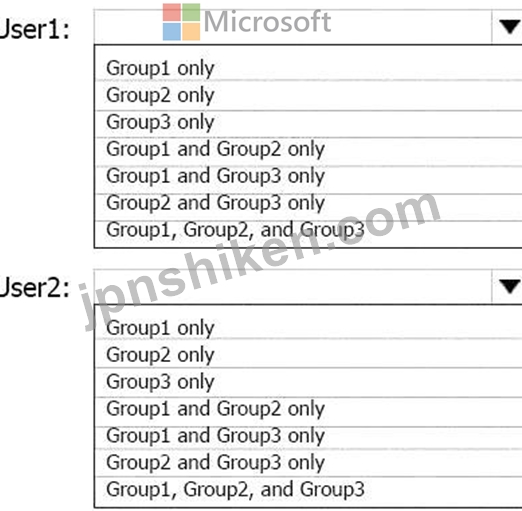
次の表に示すように構成された 2 つのユーザー アカウントを作成します。
User1 と User2 はどのグループに属していますか? 回答するには、回答領域で適切なオプションを選択してください。
注意: 正しい選択ごとに 1 ポイントが加算されます。
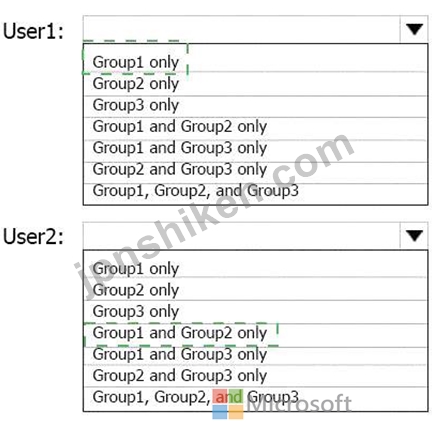
正解:
Explanation:

Azure Active Directory (Azure AD) supports three types of groups:
Security groups (for access and permissions),
Microsoft 365 groups (for collaboration tools such as Teams, SharePoint, and Outlook), Dynamic groups (with automatically managed memberships based on user attributes).
A dynamic user group uses membership rules to automatically add or remove users based on user properties (e.g., city, department, job title, etc.). These rules use Azure AD rule syntax, and they are case-insensitive.
Given Groups
Name
Group type
Membership type
Membership rule
Group1
Security
Dynamic user
(user.city -startsWith "m")
Group2
Microsoft 365
Dynamic user
(user.department -notIn ["HR"])
Group3
Microsoft 365
Assigned
Not applicable
Given Users
Name
City
Department
Office 365 license assigned
User1
Montreal
Human resources
Yes
User2
Melbourne
Marketing
No
Evaluate Group Membership
Group1 Rule:
(user.city -startsWith "m")
The condition includes any user whose city starts with 'm' (case-insensitive).
User1: City = Montreal # # Matches
User2: City = Melbourne # # Matches
# Both User1 and User2 belong to Group1
Group2 Rule:
(user.department -notIn ["HR"])
The condition excludes users in the "HR" department.
Note: "Human resources" # "HR" (string comparison must match exactly).
User1: Department = Human resources # # Not "HR", so matches the rule.
User2: Department = Marketing # # Not "HR", matches the rule.
# Both User1 and User2 belong to Group2
Group3:
Assigned group - membership must be manually configured.
No users are mentioned as being assigned # # Neither User1 nor User2 belongs.
However, here's a key Azure detail:
Dynamic Microsoft 365 groups (like Group2) require that users have a valid Microsoft 365 license. Users without a license (User2 in this case) can't fully participate in Microsoft 365 group services - even if the dynamic rule matches.
Azure AD will still technically add the user to the group object (visible in Azure AD), but the user will not have service-level access (Teams, SharePoint, Outlook).
In most Microsoft exam scenarios (as per the AZ-104 official study guide), such a case is treated as:
User1: added to Microsoft 365 group (licensed).
User2: skipped or treated as non-member because license missing.
# Final Effective Memberships (Per Microsoft AZ-104 Study Context):
User
Group Membership
Reason
User1
Group1 only
Meets city rule; licensed user for M365; department rule may not apply because of "Human resources" not
"HR".
User2
Group1 and Group2 only
Matches both rules but has no license, still counted logically under dynamic groups in AAD object view.
Final Verified Answer (Microsoft Azure Documentation-Based):
User1: # Group1 only
User2: # Group1 and Group2 only
Microsoft Learn Extract (Supporting Evidence):
"Dynamic group membership rules automatically manage users in Azure AD based on attributes.
String comparisons are case-insensitive and must match exactly.
Assigned groups require manual membership configuration."
(Source: Microsoft Learn - Manage dynamic groups in Azure Active Directory)

- 質問一覧「204問」
- 質問1 次の表に示す仮想ネットワークを含む Azure サブスクリプション...
- 質問2 Server2 の Azure 仮想サーバーに適切なサイズが必要です。 どう...
- 質問3 20 台の仮想マシン、NSG1 という名前のネットワーク セキュリテ...
- 質問4 注: この質問は、同じシナリオを提示する一連の質問の一部です。...
- 質問5 Admin1、Admin2、Admin3 という名前の 3 人のグローバル管理者を...
- 質問6 Group1 という名前のコンテナー グループを含む Azure サブスク...
- 質問7 storage1 という名前のストレージ アカウントを含む Azure サブ...
- 質問8 Microsoft Entra テナントがあります。 Azure ポータルを使用し...
- 質問9 VNET1、VNET2、VNET3 という名前の 3 つの仮想ネットワークを含...
- 質問10 ASP1 という名前の Azure App Service プランがあります。 ASP1 ...
- 質問11 Sub1 という名前の Azure サブスクリプションがあり、そこには U...
- 質問12 DCR1 に計画されている変更を実装する必要があります。どのタイ...
- 質問13 次の表のリソースを含む Azure サブスクリプションがあります。 ...
- 質問14 ネットワークには、contoso という名前のオンプレミスの Active ...
- 質問15 北ヨーロッパ A2ure リージョンに storage 1 という名前のストレ...
- 質問16 注:この質問は、同じシナリオを提示する一連の質問の一部です。
- 質問17 VM1、VM2、VM3という3つの仮想マシンを含むAzureサブスクリプシ...
- 質問18 次の表に示すリソースを含む Azure サブスクリプションがありま...
- 質問19 次の表に示す仮想ネットワークを含む Azure サブスクリプション...
- 質問20 次の図に示す Azure リソースがあります。 (Exhibit) リソースの...
- 質問21 RG26 という名前のリソース グループを含む Azure サブスクリプ...
- 質問22 VNet1という仮想ネットワークを含むSubscription1というAzureサ...
- 質問23 D:\Folder1 という名前のフォルダーを含むオンプレミス サーバー...
- 質問24 次の図に示す構成を持つ VNet1 という名前の仮想ネットワークが...
- 質問25 図に示すように、VNet1 という名前の仮想ネットワークがあります...
- 質問26 新しいコンテナに対して計画された変更を実装する必要があります
- 質問27 Azure Network Watcher を使用して次のタスクを実行する予定です...
- 質問28 Azureサブスクリプションには、storage1という名前のストレージ...
- 質問29 8 台の仮想マシンと次の表に示すリソースを含む Azure サブスク...
- 質問30 既存の仮想マシンをベースにしたAzure Resource Managerテンプレ...
- 質問31 Subscription1 という名前の Azure サブスクリプションがありま...
- 質問32 次の表に示すように、2 つの Azure 仮想マシンがあります。 (Exh...
- 質問33 10 個の Azure サブスクリプションにリンクされている Azure AD ...
- 質問34 storage1 という名前の Azure ストレージ アカウントがあります...
- 質問35 storage1 という名前のストレージ アカウントを含む Azure サブ...
- 質問36 webapp1 という名前の Azure Web アプリがあります。 VNET1 とい...
- 質問37 次の表に示す Azure リソースが含まれる Sub1 という名前の Azur...
- 質問38 storage1という名前のAzureストレージアカウントがあります。 Az...
- 質問39 次の表に示す仮想ネットワークを含む Azure サブスクリプション...
- 質問40 次の表に示すリソースを含む Azure サブスクリプションがありま...
- 質問41 Microsoft Entra テナントがあります。 新しい Microsoft 365 グ...
- 質問42 VNet1 という仮想ネットワークを含む、Subscription1 という Azu...
- 質問43 Azure 仮想マシンをデプロイするために使用される Azure Resourc...
- 質問44 Azure Resource Manager テンプレートを使用して、仮想マシン ス...
- 質問45 会社が新しい Azure サブスクリプションを購入します。 次の図に...
- 質問46 計画されたインフラストラクチャをサポートするには、Azure AD ...
- 質問47 次の表に示す IP アドレスを使用する Cluster1 という名前の Azu...
- 質問48 Subscription 1 と Subscription2 という名前の 2 つの Azure サ...
- 質問49 Azure サブスクリプションをお持ちです。 次の要件を満たすロー...
- 質問50 storage1 という名前の Azure ストレージ アカウントと、次の表...
- 質問51 storage1 という名前の Azure ストレージ アカウントがあります...
- 質問52 注: この質問は、同じシナリオを提示する一連の質問の一部です。...
- 質問53 米国西部 Azure リージョンに複数の仮想マシンが含まれる Azure ...
- 質問54 RG1 という名前のリソース グループを含む Azure サブスクリプシ...
- 質問55 Azure サブスクリプションをお持ちです。 次の図に示すように構...
- 質問56 次の図に示すアラートを含むAzureサブスクリプションがあります ...
- 質問57 storage 1 という名前のストレージ アカウントを含む Azure サブ...
- 質問58 次の表に示すリソースを含む Azure サブスクリプションがありま...
- 質問59 Azure Blob Storage と Azure File Storage を使用する storage1...
- 質問60 次の表に示すリソースを含む Azure サブスクリプションがありま...
- 質問61 10台の仮想マシン、Vault 1というキーコンテナー、NSG1というネ...
- 質問62 技術要件を満たすように WebApp1 を構成する必要があります。 Va...
- 質問63 次の表に示すグループを含む、adatum.com という名前の Microsof...
- 質問64 次の図に示すような Azure ポリシーがあります。 (Exhibit) この...
- 質問65 次の表に示すストレージ アカウントを含む、Subscription1 とい...
- 質問66 Azure サブスクリプションをお持ちです。 Deploy.json という名...
- 質問67 Azure サブスクリプションをお持ちです。サブスクリプションには...
- 質問68 RG1 という名前のリソース グループを含む Azure サブスクリプシ...
- 質問69 VNet1 という名前の仮想ネットワークを含む Azure サブスクリプ...
- 質問70 次の表に示すユーザーを含む contoso.onmicrosoft.com という名...
- 質問71 VM1 という名前の仮想マシンと KV1 という名前の Azure キー コ...
- 質問72 Sub1 という名前の Azure サブスクリプションがあります。 次の...
- 質問73 Microsoft Entra テナントがあります。 テナントのデフォルトの...
- 質問74 appl という名前の Azure App Service Web アプリがあります。次...
- 質問75 container1 と share1 を作成する必要があります。 各リソースに...
- 質問76 ストレージアカウントのコンテンツに計画されている変更を適用す
- 質問77 Azure サブスクリプションをお持ちです。 次の表に示す Azure コ...
- 質問78 次の表に示すリソース グループを含む Azure サブスクリプション...
- 質問79 注:この質問は、同じシナリオを提示する一連の質問の一部です。
- 質問80 注:この質問は、同じシナリオを提示する一連の質問の一部です。
- 質問81 次のカスタム ロールベース アクセス制御 (RBAC) ロールがありま...
- 質問82 アプリケーションを移動した後、App1 のバックアップ ソリューシ...
- 質問83 Azure サブスクリプションをお持ちです。 次の図に示すように、A...
- 質問84 RG1 という名前のリソース グループを含む Azure サブスクリプシ...
- 質問85 Subscription1 という名前の Azure サブスクリプションがありま...
- 質問86 storage1 という名前の Azure Storage アカウントがあり、そこに...
- 質問87 Azure ストレージ アカウントを作成します。 ストレージ アカウ...
- 質問88 Azure サブスクリプションをお持ちです。次の表に示すリソースを...
- 質問89 次の表に示すリソース グループを含む Azure サブスクリプション...
- 質問90 次の表に示すリソースを含む Azure サブスクリプションがありま...
- 質問91 次の表に示すリソースを含む Azure サブスクリプションがありま...
- 質問92 ニューヨークオフィスの接続要件を満たす必要があります。 どう
- 質問93 account1 という名前のストレージ アカウントを含む Azure サブ...
- 質問94 認証要件を満たす環境を準備する必要があります。 実行すべき 2 ...
- 質問95 storage という名前のストレージ アカウントを含む Azure サブス...
- 質問96 VM1という名前のAzure仮想マシンがあります。 AzureはVM1からイ...
- 質問97 バックアップのテストに使用するRecovery Serviceボルトがありま...
- 質問98 次の表に示すユーザーを含む Microsoft Entra テナントがありま...
- 質問99 contoso101 と contoso102 という名前の 2 つのストレージ アカ...
- 質問100 RG1 という名前のリソース グループを含む Subscription1 という...
- 質問101 仮想マシンの暗号化を設定する必要があります。ソリューションは
- 質問102 Azure サブスクリプションをお持ちです。 50 台の仮想マシンを V...
- 質問103 次の表に示す Azure 管理グループがあります。 (Exhibit) 次の表...
- 質問104 Subscription1 という名前の Azure サブスクリプションがありま...
- 質問105 VM1 という名前の仮想マシンと App1 という名前の Azure 関数を...
- 質問106 次の表に示すクォータを含む、Subscription1 という名前の Azure...
- 質問107 ファイル共有と仮想マシンをバックアップするには、Azure Backup...
- 質問108 VM1 という名前の Azure 仮想マシンがあります。VM1 は、ARMIjso...
- 質問109 技術要件を満たすには、VM1 と VM2 のアラートを構成する必要が...
- 質問110 App1 と App2 という 2 つの Azure App Service アプリがありま...
- 質問111 次の表に示すリソースが含まれる、Subscription! という名前の A...
- 質問112 Vault1 という名前の Recovery Services コンテナーを含む Azure...
- 質問113 Subscription1 という名前の Azure サブスクリプションがありま...
- 質問114 次の表に示すグループを含む Microsoft Entra テナントがありま...
- 質問115 ハイブリッド Microsoft Entra テナントにリンクされた Azure サ...
- 質問116 adatum.com という名前の Azure Active Directory (Azure AD) テ...
- 質問117 次の表に示すパブリック IP アドレスを持つ Azure サブスクリプ...
- 質問118 Subscription1 という名前の Azure サブスクリプションがありま...
- 質問119 Subscription1 という名前の新しい Azure サブスクリプションを...
- 質問120 注:この質問は、同じシナリオを提示する一連の質問の一部です。
- 質問121 次の表に示す仮想ネットワークを含む Azure サブスクリプション...
- 質問122 次の図に示すストレージ アカウントを含む Azure サブスクリプシ...
- 質問123 VM1 という仮想マシンを含む Azure サブスクリプションがありま...
- 質問124 注: この質問は、同じシナリオを提示する一連の質問の一部です。...
- 質問125 次の表に示す仮想マシンを含む Azure サブスクリプションがあり...
- 質問126 次の表に示すリソースを含む Azure サブスクリプションがありま...
- 質問127 Sub1 と Sub2 という 2 つの Azure サブスクリプションがありま...
- 質問128 次の表に示す App Service プランがあります。 (Exhibit) 次の表...
- 質問129 Standard レベルの Azure コンテナー レジストリがあります。 コ...
- 質問130 次の表に示す仮想ネットワークを含む Azure サブスクリプション...
- 質問131 VNet1 という名前の Azure 仮想ネットワークがあり、サイト間 VP...
- 質問132 User1 という名前の Microsoft Entra ユーザーと、contoso2023 ...
- 質問133 ストレージ5を作成する必要があります。ソリューションは計画さ
- 質問134 VNet1 という名前の仮想ネットワーク上に複数の Azure 仮想マシ...
- 質問135 storage 1 という名前のストレージ アカウントを含む Azure サブ...
- 質問136 Windows Server 2019 を実行する VM1 という名前の Azure 仮想マ...
- 質問137 次の設定を含む VNetl という名前の Azure 仮想ネットワークがあ...
- 質問138 次の表に示すリソースを含む Azure サブスクリプションがありま...
- 質問139 次の表に示す Azure 仮想マシンがあります。 (Exhibit) VM1 に D...
- 質問140 共有アクセス署名(SAS)を生成する必要があります。ソリューシ...
- 質問141 オンプレミス ネットワークに VPN ゲートウェイが含まれています...
- 質問142 次の表に示すストレージ アカウントを含む Azure サブスクリプシ...
- 質問143 次のリソース グループを含む Subscription1 という名前の Azure...
- 質問144 次の図に示すように、Microsoft Entra テナントが構成されていま...
- 質問145 次の図に示すネットワーク プロファイルを持つ Azure Kubernetes...
- 質問146 次の表に示す仮想ネットワークを含む Azure サブスクリプション...
- 質問147 LB1 という名前の Azure ロード バランサーがあります。 User1 ...
- 質問148 storage1 という Azure Storage アカウントがあり、このアカウン...
- 質問149 VM1がVM4と通信できることを確認する必要があります。ソリューシ...
- 質問150 VM1、VM2、およびVM3という名前の3つのAzure仮想マシンをデプロ...
- 質問151 次の Azure Resource Manager テンプレートを使用して、Azure コ...
- 質問152 次の表に示すリソース グループを含む Azure サブスクリプション...
- 質問153 Azureサブスクリプションに、storage1というストレージアカウン...
- 質問154 Contoso ストレージという名前の Azure ストレージ アカウントを...
- 質問155 Group4 にすべての A2ure ファイル共有に対する Azure RBAC 読み...
- 質問156 5,000 個のユーザー アカウントを含む Microsoft Entra テナント...
- 質問157 storage1 という Azure Storage アカウントがあり、その中に com...
- 質問158 VNet1 と VNet2 という 2 つのピアリングされた仮想ネットワーク...
- 質問159 次の図に示すような App Service プランがあります。 (Exhibit) ...
- 質問160 注:この質問は、同じシナリオを提示する一連の質問の一部です。
- 質問161 Azure サブスクリプションをお持ちです。サブスクリプションには...
- 質問162 AKS1 という名前の Azure Kubernetes Service (AKS) クラスター...
- 質問163 画像を保存する storage1 という名前の Azure ストレージ アカウ...
- 質問164 次の図に示すように、WEBPROD-AS-USE2 という名前の Azure 可用...
- 質問165 ユーザー1がイニシアチブ定義を作成し、ユーザー4がRG2にイニシ...
- 質問166 Subscription1 という名前の Azure サブスクリプションがありま...
- 質問167 次の表に示すリソースを含む Azure サブスクリプションがありま...
- 質問168 次の表に示すサブスクリプションにリンクされた Azure AD テナン...
- 質問169 Azure サブスクリプションをお持ちです。 複数のデータ ディスク...
- 質問170 cont2 に対して計画された変更を実装します。 cont2 に作成でき...
- 質問171 オンプレミス ネットワークがあります。 VNET1、VNET2、VNET3 と...
- 質問172 次の表に示すリソースが含まれる Sub1 という名前の Azure サブ...
- 質問173 次の表に示す仮想ネットワークを含む Azure サブスクリプション...
- 質問174 Azure サブスクリプションをお持ちです。 コンテナをデプロイす...
- 質問175 次の表に示すグループを含む、adatum.com という名前の Azure AD...
- 質問176 VM4 の技術要件を満たす必要があります。 何を作成して構成する...
- 質問177 storage1 という名前の Azure ストレージ アカウントに対して Az...
- 質問178 AKS1 という名前の Azure Kubernetes Service (AKS) クラスター...
- 質問179 contoso?02 3 という名前のストレージ アカウントを含む Azure ...
- 質問180 Azure ストレージ アカウントを含む Azure サブスクリプションが...
- 質問181 NSG1 と NSG2 に対して計画された変更を実装します。 以下の各文...
- 質問182 あなたの会社には、Subscription1という名前のAzureサブスクリプ...
- 質問183 VNet1 という名前の仮想ネットワークを含む Azure サブスクリプ...
- 質問184 注: この質問は、同じシナリオを提示する一連の質問の一部です。...
- 質問185 次の表に示すパブリック IP アドレスを使用する Azure サブスク...
- 質問186 2 つの実行中のインスタンスを含む App1 という名前の Azure App...
- 質問187 次の図に示すようなロール割り当てファイルがあります。 (Exhibi...
- 質問188 VM1 と VM2 という名前の 2 つの仮想マシンを含む Azure サブス...
- 質問189 Azure 仮想マシンを 3 つの Azure リージョンにデプロイします。...
- 質問190 storage1 というストレージアカウントを含む Azure サブスクリプ...
- 質問191 Job1 という名前の Azure Stream Analytics ジョブが含まれる Az...
- 質問192 Azure サブスクリプションをお持ちです。 Templatejson という名...
- 質問193 認証要件を満たす環境を準備する必要があります。 実行すべき 2 ...
- 質問194 オンプレミスネットワークには、Share1という名前のSMB共有が含...
- 質問195 Workspace 1 と Workspace? という名前の 2 つの Log Analytics ...
- 質問196 社内の複数の部門で使用されている Subscription1 という名前の ...
- 質問197 注:この質問は、同じシナリオを提示する一連の質問の一部です。
- 質問198 次の表に示すリソースを含む Azure サブスクリプションがありま...
- 質問199 ストレージ アカウントを含む Azure サブスクリプションがありま...
- 質問200 Subscription1 および Subscription2 という名前の Azure サブス...
- 質問201 次の表に示すストレージ アカウントを含む Azure サブスクリプシ...
- 質問202 次の表に示すリソースが含まれる Sub1 という名前の Azure サブ...
- 質問203 Azure サブスクリプションをお持ちです。このサブスクリプション...
- 質問204 次の表に示すストレージ アカウントを含む Azure サブスクリプシ...
